


- Why video carousels are becoming standard on Shopify product pages
- What a Shopify video carousel actually is (and what it’s not)
- Why a video carousel converts better than a single product video
- Where a video carousel should live on a Shopify product page
- Native Shopify options for adding video to product pages (and their limits)
- Why many merchants use apps to create Shopify video carousels
- What makes a Moast video carousel different
- Step-by-step: how to add a video carousel to Shopify product pages using Moast
- Best practices for building a high-converting Shopify video carousel
- Common mistakes to avoid with Shopify video carousels
- How to measure the impact of a video carousel on Shopify
- When a Shopify video carousel makes the biggest difference
- Final thoughts: video carousels are becoming table stakes
Video has become one of the most effective ways to increase conversion rates on Shopify product pages. But not just any video. Merchants are increasingly moving beyond single product videos and static image galleries toward video carousels that let shoppers browse multiple videos, see products in real use, and build confidence before buying.
A Shopify video carousel combines the familiarity of a product image slider with the persuasion of video. Instead of forcing shoppers to watch one brand-produced clip, it gives them multiple perspectives: different use cases, real customers, different angles, and authentic demonstrations.
This guide walks through exactly how to add a video carousel to your Shopify product pages, what to consider before implementing one, and how to use Moast to turn those videos into shoppable, conversion-driving assets.
Why video carousels are becoming standard on Shopify product pages
Most Shopify themes were built around static image galleries. For years, that was enough. But shopper behavior has changed.
Modern ecommerce buyers expect to see products in action before committing. They want to understand scale, fit, movement, and real-world usage. A single hero video often fails to answer all those questions.
A video carousel solves this by allowing multiple short videos to live directly within the product experience.
Instead of:
- One polished brand video
- Or a static image slider
You get:
- A scrollable or swipeable set of videos
- Each showing a different angle, use case, or person
- Embedded directly where purchase decisions happen
For Shopify merchants, this translates into longer time on page, higher engagement, and stronger buyer confidence.
What a Shopify video carousel actually is (and what it’s not)

Before diving into setup, it’s important to clarify what people usually mean when they search for “Shopify video carousel.”
A Shopify video carousel is:
- A horizontal or swipeable gallery of videos
- Embedded on a product page
- Often placed where product images normally live
- Designed for mobile and desktop interaction
It is not:
- A single autoplay hero video
- A background video section
- A homepage-only feature
- A YouTube embed buried below the fold
The key difference is that a carousel allows shoppers to browse video content the same way they browse images, without disrupting their flow.
Why a video carousel converts better than a single product video
Many brands add one product video and stop there. That’s a missed opportunity.
A single video assumes all shoppers have the same questions. In reality, different buyers care about different things.
A video carousel allows you to:
- Show fit and sizing in one video
- Show setup or installation in another
- Show real customers using the product
- Show different environments or styles
- Highlight specific features separately
This modular approach reduces friction because shoppers can self-select the content that matters to them.
Where a video carousel should live on a Shopify product page
Placement matters more than most merchants realize.
The highest-performing Shopify video carousels are typically placed:
- Inside the main product media gallery
- Above the fold, near the product title and price
- As the first or second item shoppers see when scrolling
When video is buried far below the description, it becomes optional. When it lives inside the core product experience, it becomes part of the buying decision.
This is why integrating video directly into the product media carousel is often more effective than adding a separate video section.
Native Shopify options for adding video to product pages (and their limits)
Shopify does support video uploads natively. You can:
- Upload MP4 files to a product’s media gallery
- Embed videos alongside product images
- Use theme settings to control display order
However, native Shopify video has limitations:
- No built-in way to create a true multi-video carousel experience
- Limited control over mobile behavior
- No shoppable interactions inside videos
- No performance tracking tied to conversion
For merchants who just want a basic video alongside images, this can work. For merchants focused on conversion optimization, it often falls short.
Why many merchants use apps to create Shopify video carousels
To build a proper video carousel that is:
- Mobile-optimized
- Fast-loading
- Interactive
- Easy to manage
- Designed for conversion
Most Shopify brands turn to third-party apps.
This is where Moast comes in.
Moast allows merchants to add shoppable video carousels directly to product pages, combining video, social proof, and product tagging in one experience.
What makes a Moast video carousel different
Moast is built specifically for ecommerce, not generic video hosting.
With Moast, a video carousel can:
- Live directly on product pages
- Contain multiple videos per product
- Include customer-generated and creator content
- Tag products inside videos
- Allow shoppers to click and shop without leaving the page
Instead of video being passive, it becomes interactive.
This matters because the shorter the path between interest and action, the higher the likelihood of conversion.
Step-by-step: how to add a video carousel to Shopify product pages using Moast
Below is a practical walkthrough of how merchants typically implement a video carousel using Moast.
This is written to be understandable even if you’re not technical.
Step 1: Install Moast on your Shopify store
Start by installing Moast from the Shopify App Store.
Once installed, Moast connects directly to your Shopify catalog, allowing you to:
- Access your products
- Associate videos with specific SKUs
- Display video widgets on product pages
No theme editing is required for most setups.
Step 2: Upload or collect your videos
You can add videos to Moast in two main ways:
- Upload existing videos
- Collect videos from customers or creators
Videos can include:
- Product demos
- UGC from customers or Moast UGC projects
- Creator walkthroughs
- Try-ons or unboxings
Each video becomes an asset you can reuse across your store.
Step 3: Tag products inside your videos
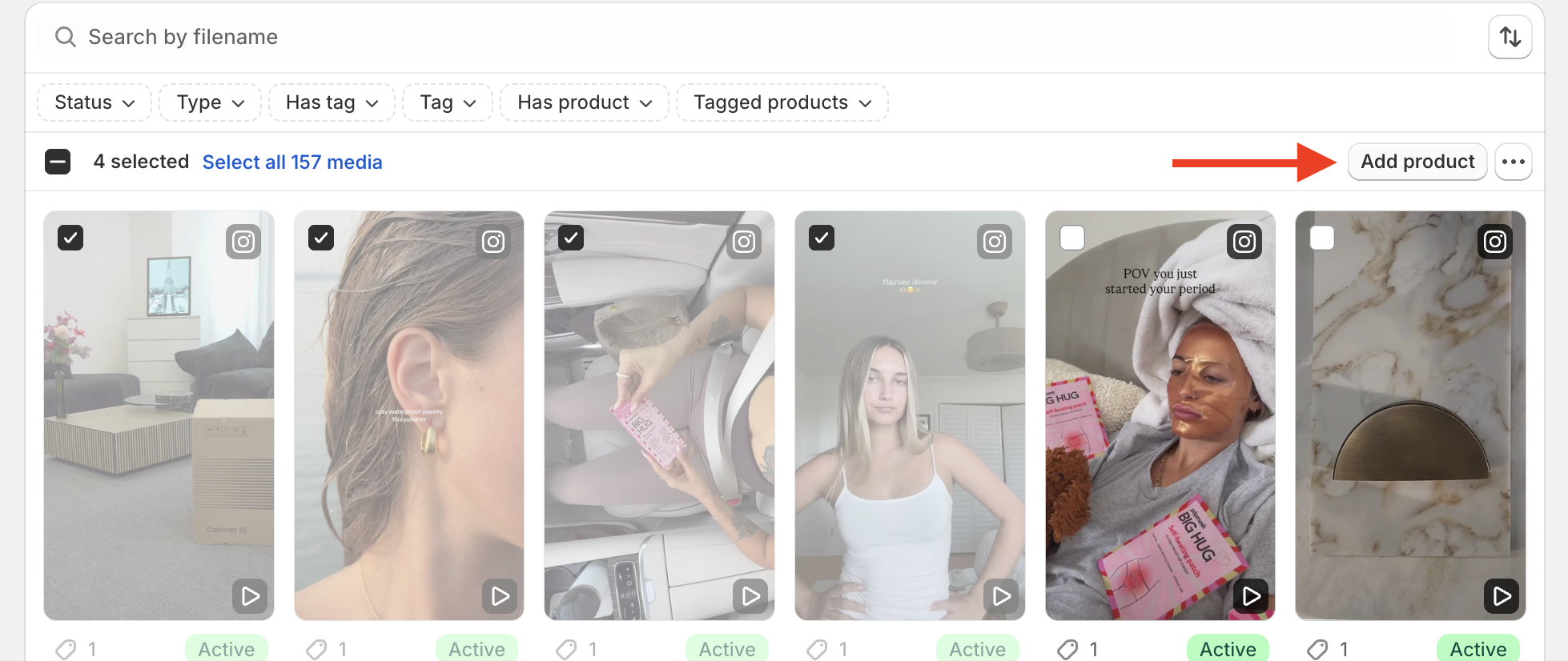
This is the step that turns a standard video carousel into a shoppable one.
Inside Moast, you can tag products directly within each video. Product tagging allows:
- Clickable product pins
- Direct add-to-cart flows
- Clear association between video and product
Tagging is especially useful when:
- A video features multiple products
- You want to highlight variants
- Videos live outside the core product page
Moast’s tagging system is designed to be simple and visual, so non-technical teams can manage it easily.
Step 4: Assign videos to the correct product pages
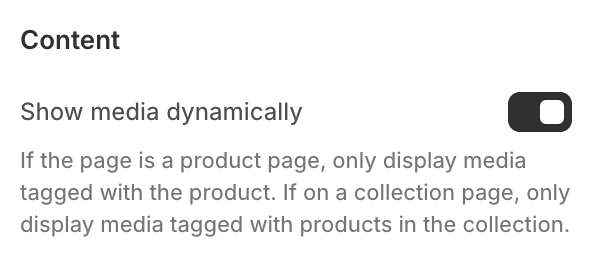
Once videos are uploaded and tagged, you choose where they appear.
For a video carousel on a product page:
- Assign multiple videos to the same product
- Choose the product page widget or carousel layout
- Control display order if needed / toggle on show videos dynamically
Moast automatically handles responsive behavior, ensuring the carousel works smoothly on mobile and desktop.
Step 5: Place the video carousel in your product page layout
Moast provides widgets that can be:
- Embedded automatically
- Added via theme app blocks
- Positioned within the product media gallery or near it
Most merchants place the video carousel:
- At the top of the product page
- Immediately below the product images
- Or integrated directly into the gallery experience
This ensures high visibility without disrupting layout.
Step 6: Preview and test on mobile and desktop
Before going live:
- Preview the product page on desktop
- Test swipe behavior on mobile
- Click product tags to ensure correct linking
- Confirm load speed and responsiveness
Moast is optimized for performance, but placement and theme differences still matter.
See here for our full helpdesk guide on adding videos to product pages
Best practices for building a high-converting Shopify video carousel
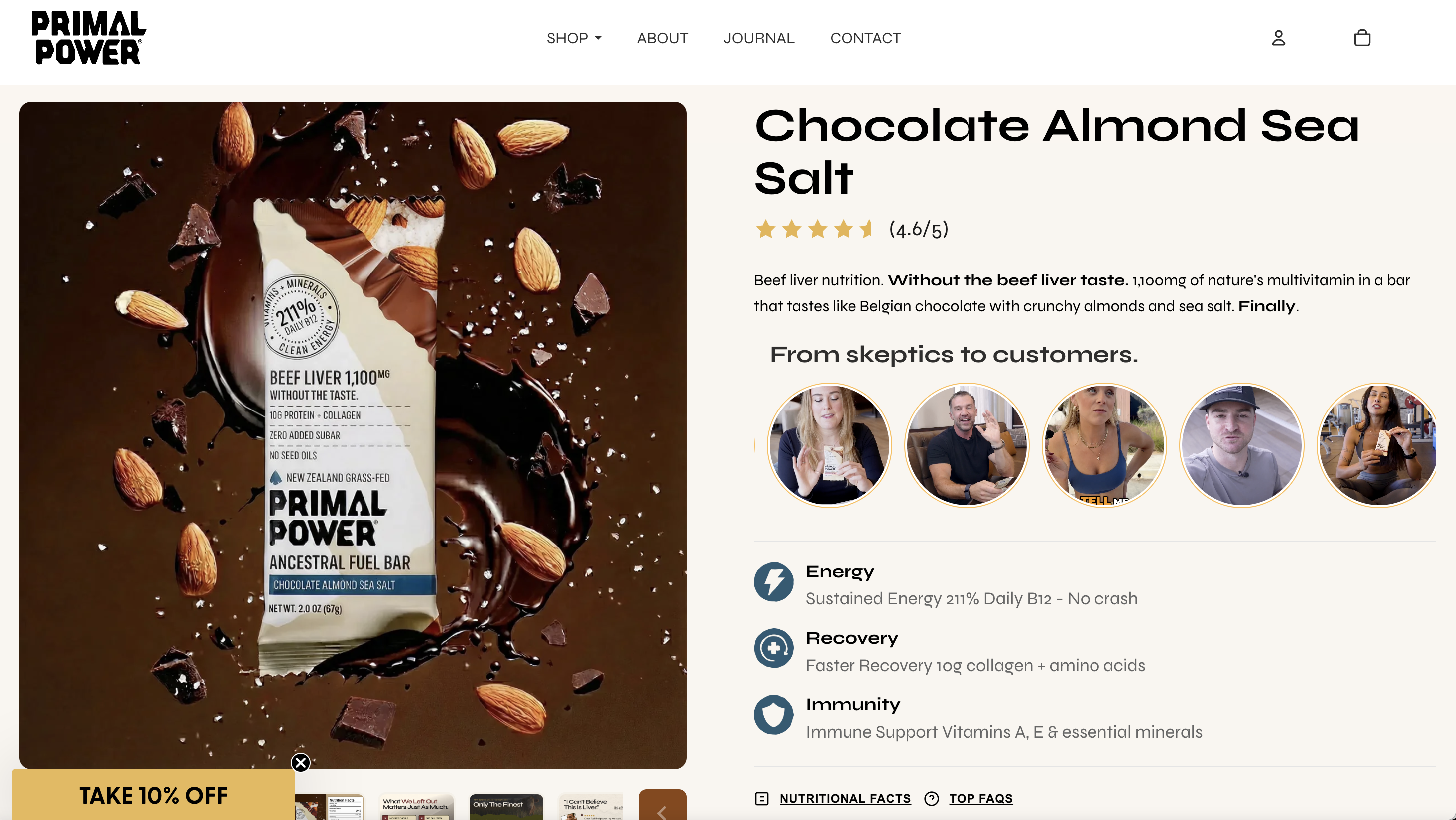
Adding a carousel is only half the job. How you curate it determines performance.
Use multiple short videos instead of one long one
Short videos perform better in carousels. Aim for:
- 15–45 seconds per video
- One idea per clip
- Clear visuals early in the video
Shoppers are browsing, not watching a documentary.
Mix UGC with creator or brand content
Carousels work best when they combine:
- Authentic customer videos
- Clear creator demos
- Occasional brand-produced explainers
This balance builds trust while still educating.
Order videos intentionally
Lead with:
- The most relatable or confidence-building video
- Not necessarily the most polished one
Save niche or advanced videos for later positions in the carousel.
Optimize for mobile first
Most Shopify traffic is mobile. Ensure:
- Videos are vertical or square
- Text overlays are readable
- Product tags are easy to tap
Moast handles mobile optimization, but your content still needs to be designed with mobile behavior in mind.
Common mistakes to avoid with Shopify video carousels
Many merchants add video carousels and see little impact because of avoidable errors.
Common mistakes include:
- Adding too many videos at once
- Using overly polished, ad-like content
- Burying the carousel below long descriptions
- Not tying videos to specific products
- Ignoring mobile experience
A focused, intentional carousel almost always outperforms a crowded one.
How to measure the impact of a video carousel on Shopify
Views alone don’t tell the story.
When evaluating performance, focus on:
- Conversion rate differences on pages with video carousels
- Add-to-cart rate
- Time on page
- Engagement with video elements
- Revenue influenced by video interactions
Moast provides analytics that help connect video engagement to real outcomes, not just impressions.
When a Shopify video carousel makes the biggest difference
Video carousels are especially impactful for:
- Apparel and accessories
- Beauty and skincare
- Home goods and furniture
- Fitness and outdoor products
- Higher-priced or high-consideration items
Any product that benefits from visual explanation is a strong candidate.
Final thoughts: video carousels are becoming table stakes
As ecommerce competition increases, small conversion gains matter more than ever. A Shopify video carousel is no longer an advanced tactic reserved for large brands. It’s becoming a standard expectation.
By using a tool like Moast, Shopify merchants can:
- Add video carousels without technical complexity
- Turn video into shoppable, interactive content
- Build trust directly on product pages
- Improve conversion without increasing ad spend
When video is treated as part of the product experience instead of a marketing afterthought, it becomes one of the most reliable levers for growth on Shopify.
October 12, 2026
Related content
.jpg)
.jpg)
.jpg)
Turn your social content into a revenue channel
Turn your TikToks and Reels into shoppable videos and boost conversions by 3.5x.