
Copy media between your Shopify stores
Updated 3 days ago
If you run more than one Shopify store, you can copy videos and images from one store's media library to another. Copying is one-way: media flows from your source store to your destination stores, and changes in the destination stores don't come back. You can copy manually whenever you want, or turn on automatic copying so new media and edits reach your destination stores on their own.
Before you start
You connect the stores once, and then copy as often as you like.
Products are matched between stores by SKU. Product tags carry over when the same product exists in the destination store. If media is tagged to a specific variant and the destination store doesn't have that exact variant, the copy is tagged with the product instead.
Media has to finish processing before it can be copied.
Automatic copying is set for each destination store separately, from the source store.
Connect your stores
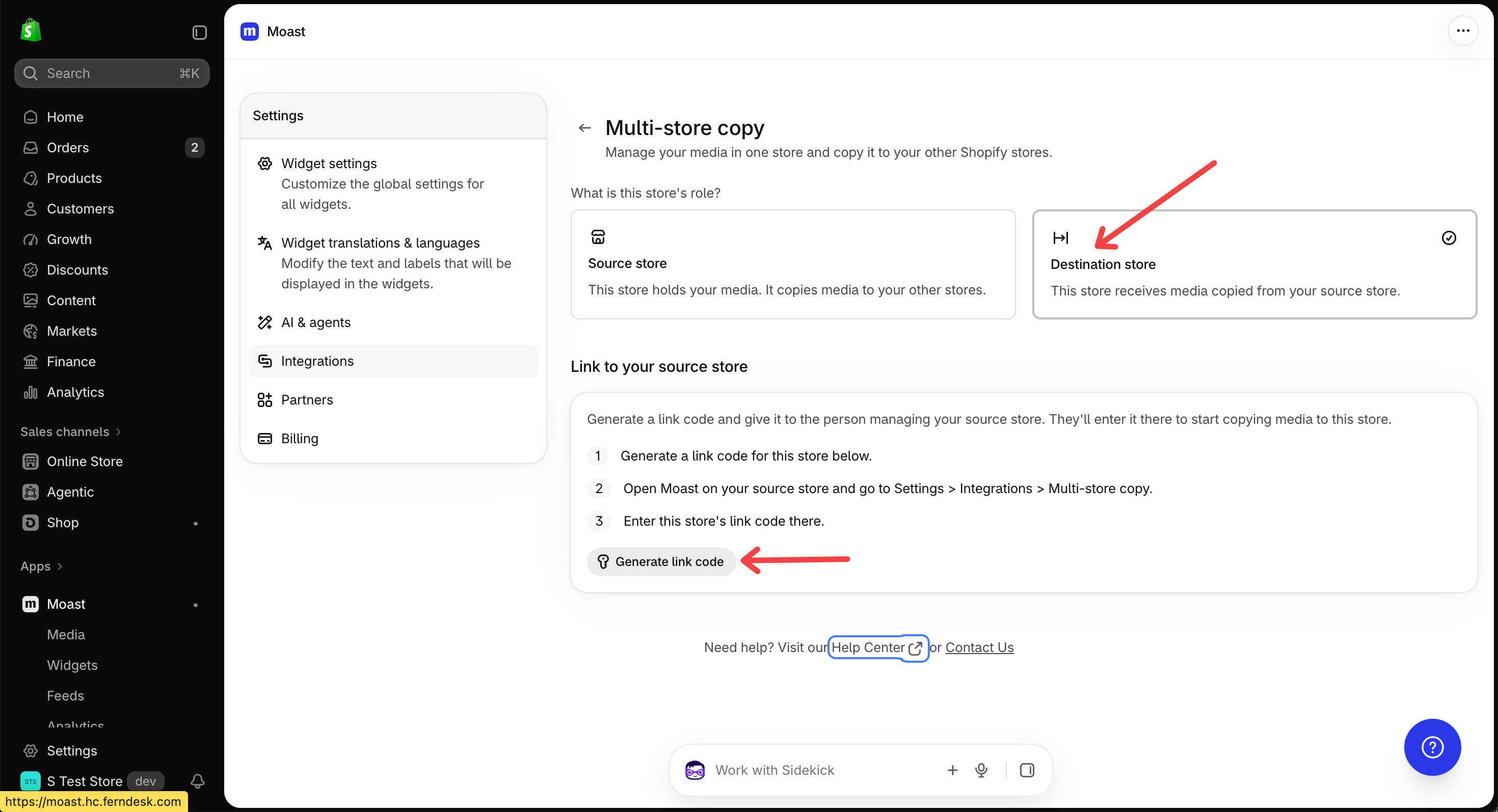
You connect stores under Settings → Integrations using a link code.
In the store that will receive the media (the destination store), go to Settings → Integrations and generate a link code.
In the store that will send the media (the source store), go to Settings → Integrations and enter that link code.
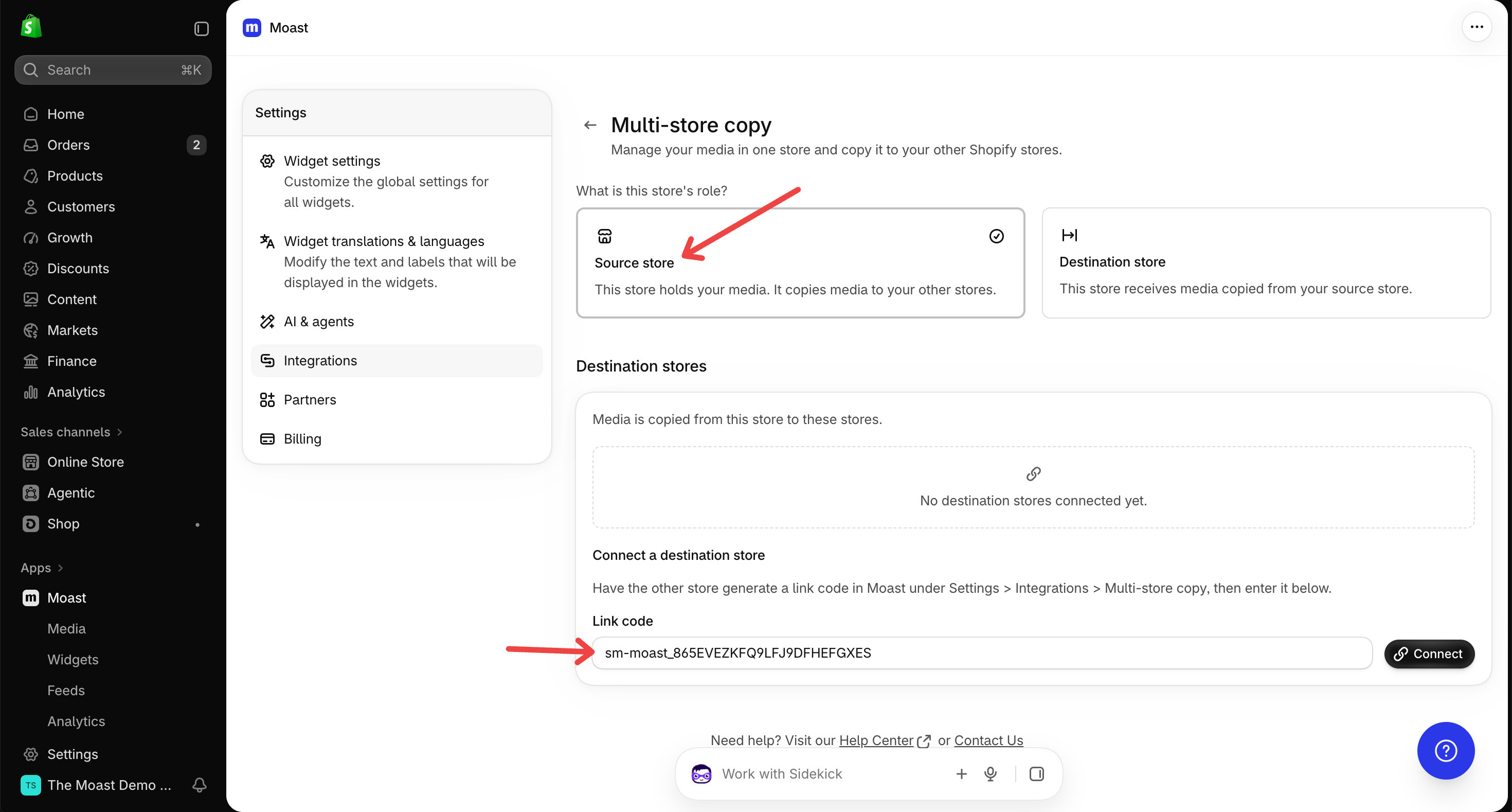
When you enter the link code, you can also choose how copying works for that destination store. New connections start on Copy manually, so nothing copies until you turn on automatic copying or copy by hand.
One source store can connect several destination stores. A store keeps its role while it has a link code or an active connection.
Link codes don't expire, and each code works once. A code stops working after it's used, or when it's regenerated, deleted, or Moast is uninstalled. If that happens, generate a new code in the destination store and connect again.
Turn on automatic copying
Automatic copying sends new media and edits to your destination stores without you lifting a finger. You pick a mode for each destination store.
In the source store, go to Settings → Integrations → Connected stores.
Find the destination store and open its Copy settings.
Under Copying, pick one of the three options and save.
The three options are:
Copy manually: nothing copies automatically. Choosing this turns automatic copying off for that store, but you can still copy by hand.
Copy new media automatically: new media that is ready in the source store is copied to the destination store.
Copy new media and edits automatically: new media is copied, and later edits to media you already copied get sent to the destination store.
How automatic copying works
A copy starts a few minutes after the change, so give it a moment before you check the destination store.
Every copy is updated again a day later to bring across details added after the first copy, like product tags, labels, captions, and AI descriptions.
With Copy new media and edits automatically, later changes to already-copied media also come over, like caption, label, and product changes and hiding or showing media.
Edits made to a copy in the destination store are replaced by the next automatic copy.
Deleting media in the source store doesn't delete its copy in the destination store.
Turning the setting on doesn't copy the media that's already in your library. To bring over existing media, copy it manually first.
Copy media to your destination stores
To copy specific media whenever you want, use the media library. Manual copying works for every destination store, whatever its automatic copy setting.
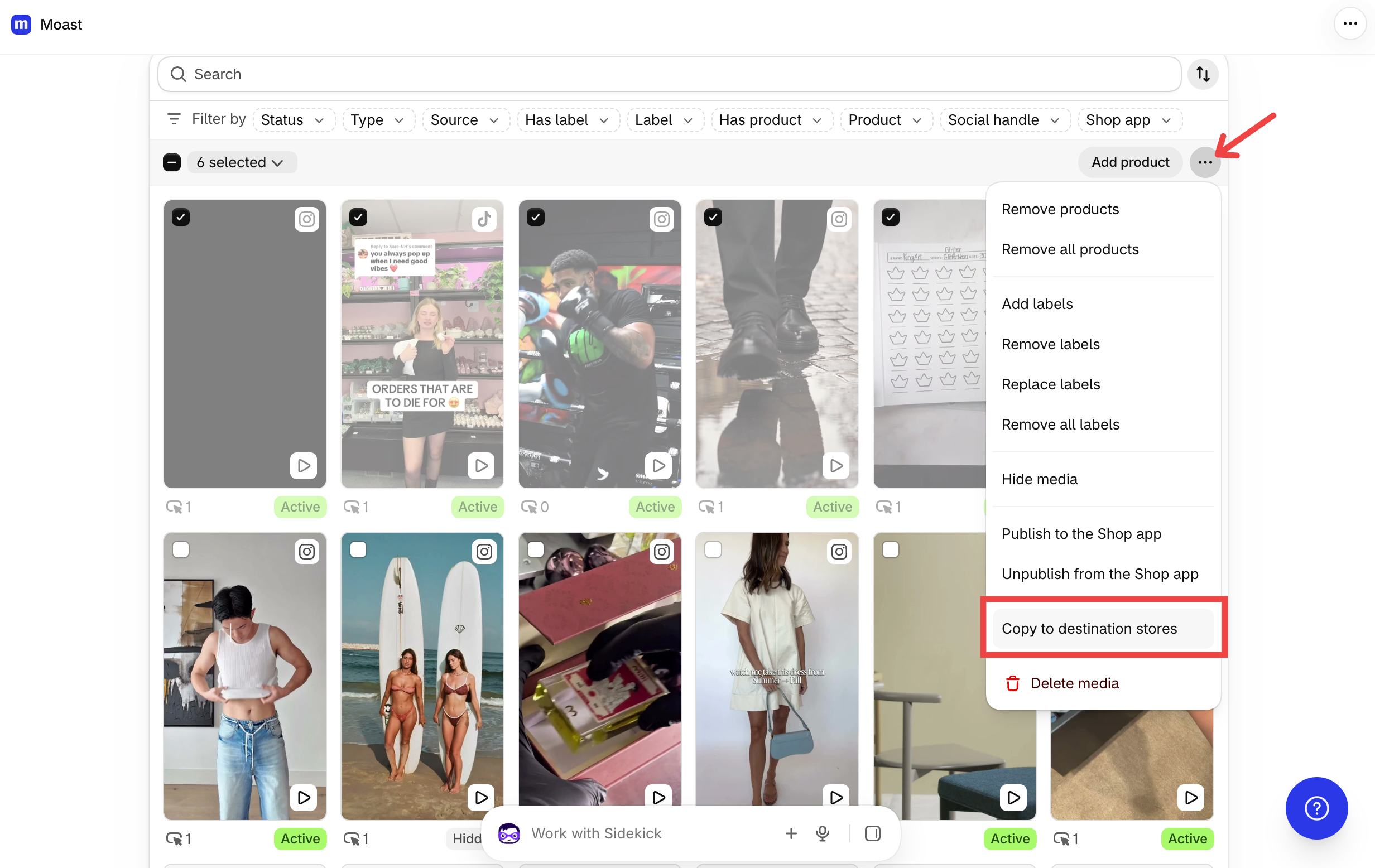
In the source store's Media library, select the videos or images you want to copy.
Click Copy to destination stores.
Check the preview before you copy. It shows how many items will be added and how many will overwrite copies that already exist in the destination store.
Start the copy.
When the copy finishes, a notification tells you the outcome for each store, including any issues.
What gets copied
Copies keep the caption, filename, alt text, description, transcription, visibility setting, labels, and product tags from the original.
Copying again later updates the copies that already exist in the destination store instead of creating new ones. Changes made to a copy in the destination store are lost when it's overwritten.
Find copied media and fix issues
In a destination store, copied media is marked Copied from your source store, and you can filter the media library to find copied media.
Copy results also list items that couldn't be copied, such as products without a matching SKU or media that was still processing.
If media was tagged to a specific variant, the copy keeps the variant tag when the destination store has a variant with the same SKU. If it doesn't, the copy is tagged with the product instead, and the copy results tell you this happened. If the product itself has no matching SKU in the destination store, the tag doesn't carry over: check that the product has the same SKU in both stores.
To make a copy inside the same store instead, see How to duplicate media.