
How to change the language of your Moast dashboard and widgets
Updated 2 weeks ago
Moast follows your Shopify admin language. Once you add new languages and publish them in your Shopify store, Moast will automatically detect them.
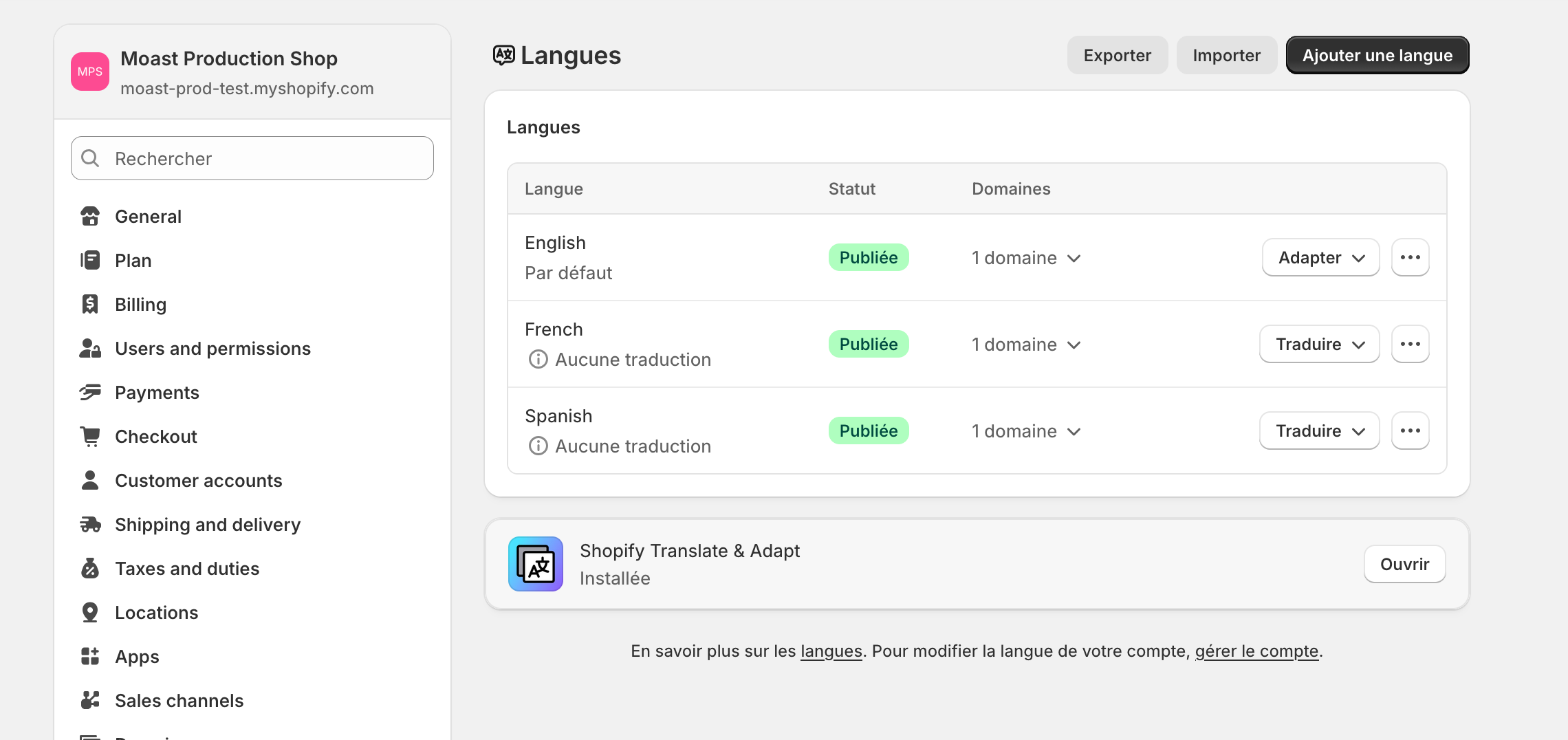
If a language isn’t published in your Shopify store, selecting it in the Moast dashboard will not change the dashboard language. Make sure the language is added and published in Shopify first.
Then, in the Moast app:
Go to Settings
Click Text & Labels
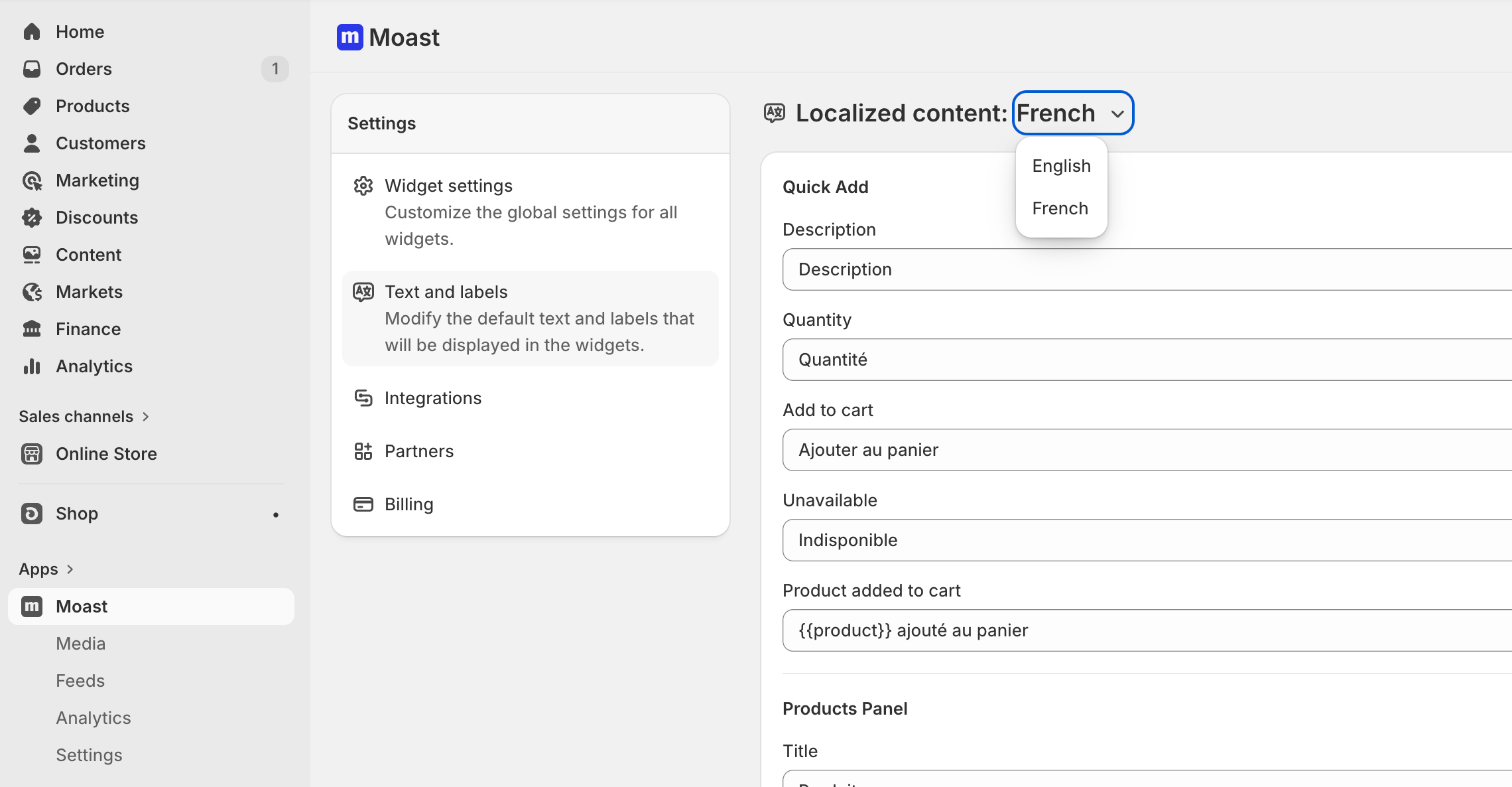
You’ll now see all of your published store languages, and you can translate the Moast widget for each one.
Moast will automatically create default translations for each language. You can edit any wording anytime if you want to customize the translations to match your brand voice.
Multi-language support is available on the Pro plan. Start your 14-day free trial to translate your widgets.
Translate widget text in the widget editor
You can also translate a widget's text right in the widget editor. Choose a language from the language dropdown in the preview bar, then edit the text fields that show a language chip, such as the header or a button label. The original text shows below the field while you translate.
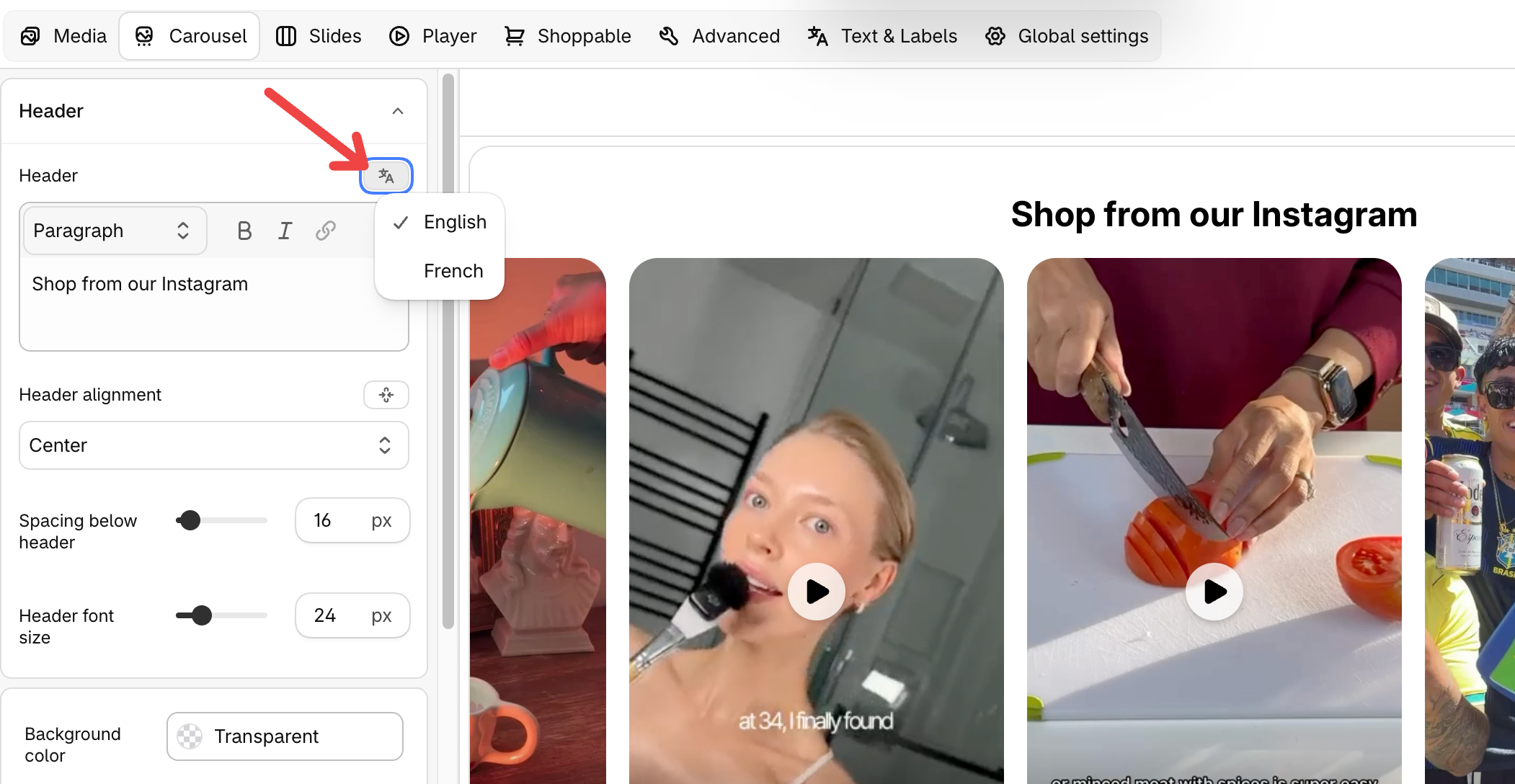
Carousel and Stories widgets can translate their Header. Video banner and Single video widgets can translate the Label, Heading, Body text, and Button label.
If you leave a translation blank, the widget shows your primary language text on the storefront.
Translating widget text needs multilingual access, which comes with the Pro plan.