
Organize your media with labels
Updated 2 months ago
Labels are tags you add to videos and images in your Media Library. They help you group content so you can find it quickly and show it in the right widgets automatically.
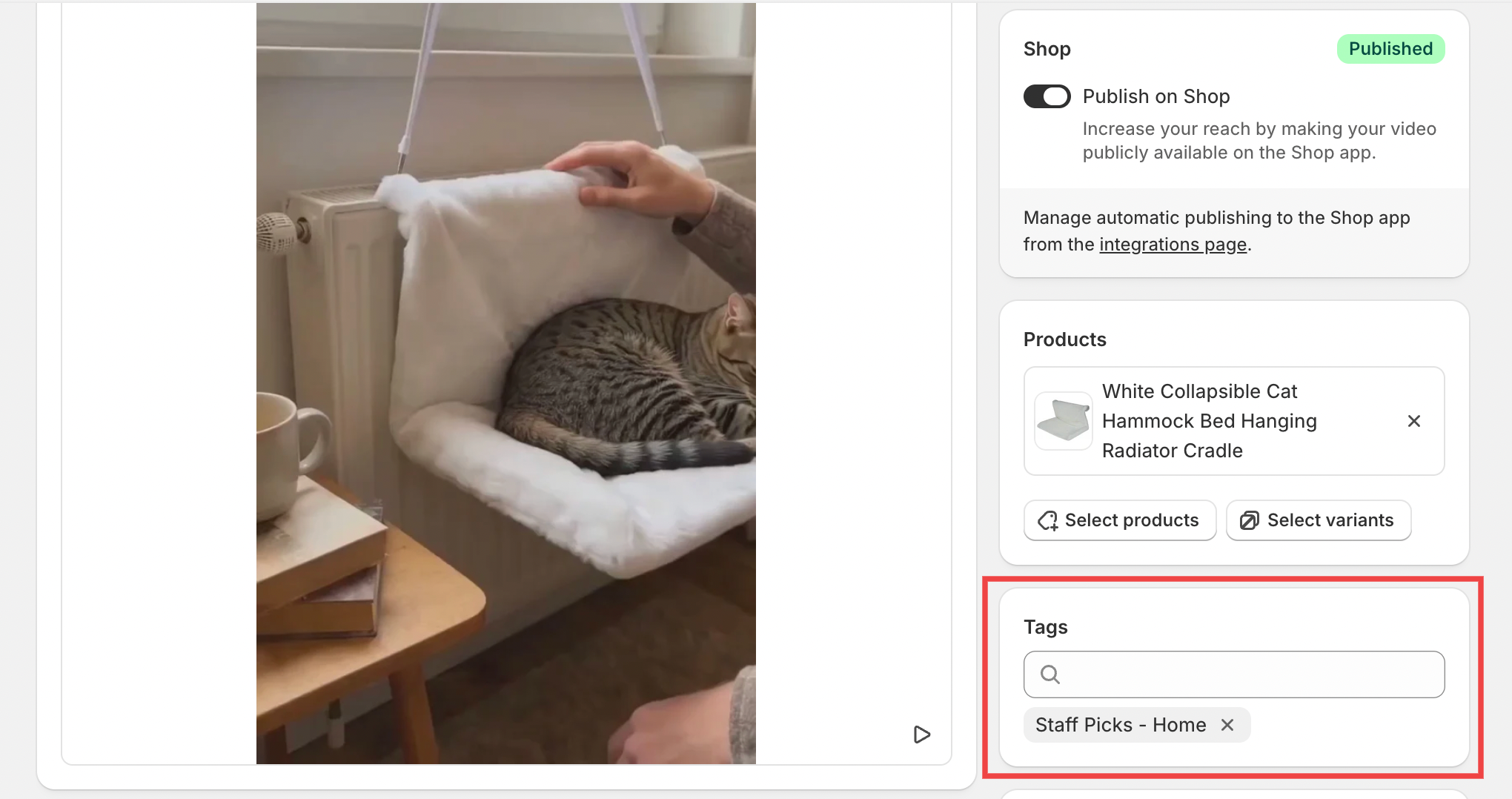
Add labels to a single media item
Open the media item you want to label and add labels directly from the label section.
Go to your Media Library and click the video or image.
In the label section, type a label name or pick one you already created.
Save the media item.
If the label does not exist yet, it will be created automatically when you save.
Label many items at once
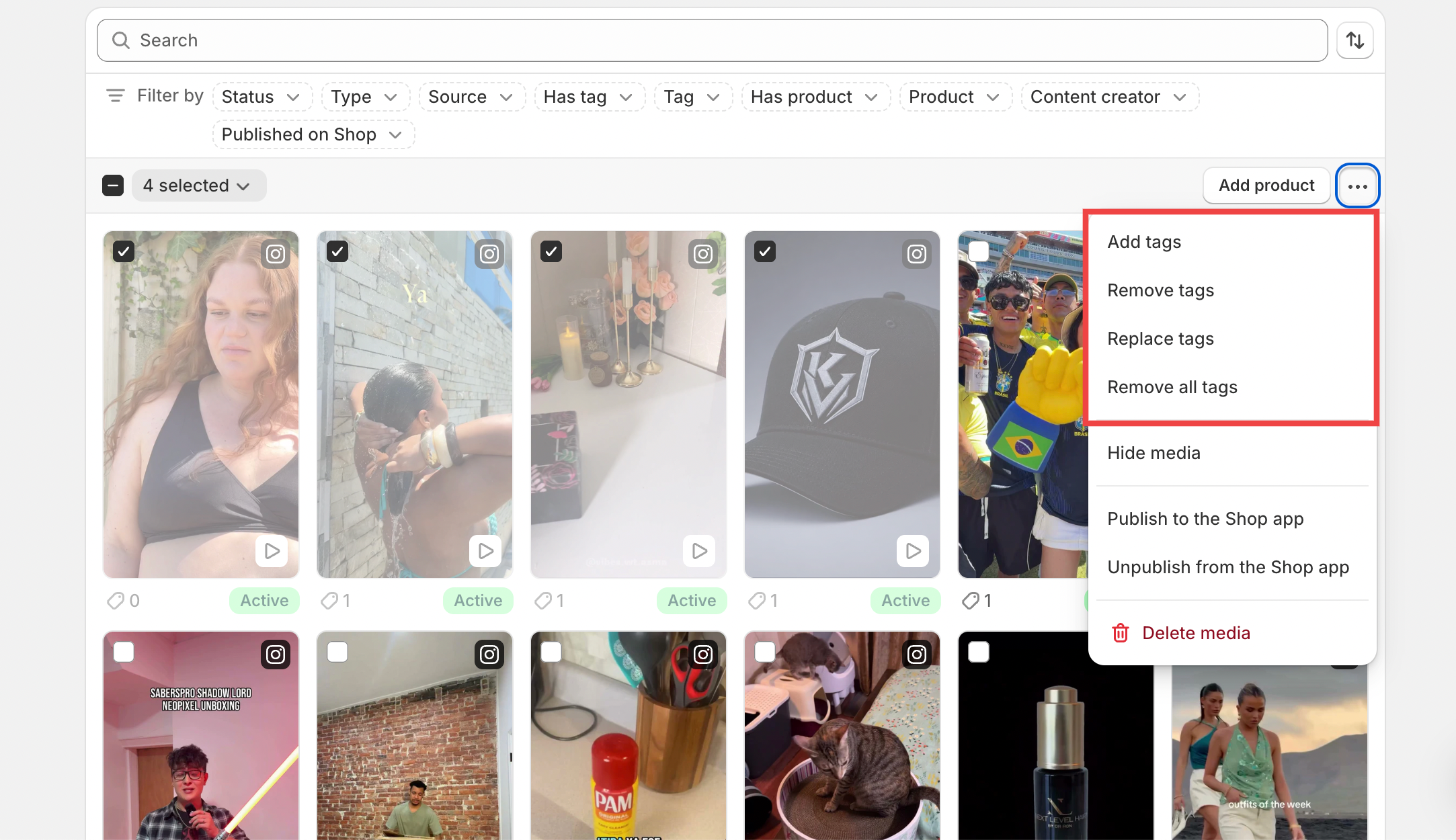
You can apply, remove, or replace labels on several media items at the same time.
In your Media Library, select the media items you want to change.
Choose a bulk label action from the toolbar.
Pick existing labels or type new ones.
Apply the changes.
Label media during import
When you upload new videos or images, you can also add labels during the import process. The media will enter your library already labeled and ready to use.
Use labels in widgets
Once your media is labeled, you can use those labels to automatically fill widgets. Instead of hand-picking every video, you set a rule like "show all media labeled with 'homepage'."
Open a widget and choose All media for the media selection.
Add a condition and choose Label.
Enter the label you want to use.
Save the widget.
Any media labeled with that label will appear automatically. You do not need to update the widget every time you add new media.
Label-based media selection is available on the Pro plan.
Remove labels from media
To remove a label from a single media item, open the item and delete the label from the label section. To remove labels from many items at once, select them in the library and use the bulk label action.
Removing a label from media only removes the label from those items. If a label is not used on any media, it is cleaned up automatically.
Filter your library by labels
In your Media Library, you can filter the list by labels to see only the media you want. The total media count at the top of the page stays the same because it counts every item in your shop.