
How to make your videos shoppable
Updated 4 weeks ago
How to tag products in your videos to make them shoppable.
Step 1: Open Your Media
In your Media Library, find the video or image you want to tag.
Click on the media.
Step 2: Tag a Product
On the right side under Call to action, click Tag product or Tag variant
Tag variant: Pick a specific variant of that product (e.g., Blue — Size M).
Tag product: Pick the parent product.
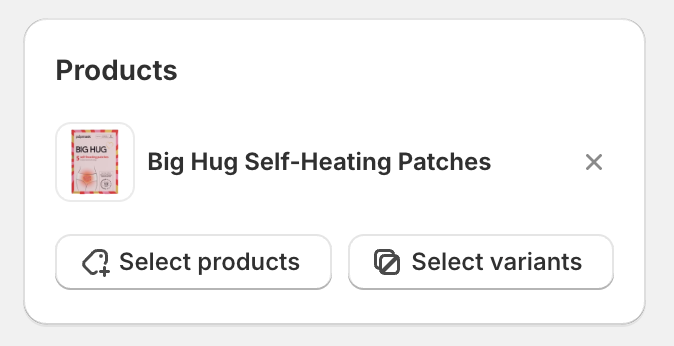
Hit save, and that's it!
Tagging products is optional, but it’s what makes your media shoppable and helps boost conversions.
Bulk Tag Videos
If you want to tag multiple videos with the same product:
Select all the videos you want to tag.
An 'Add product' button will appear in the top right of your media library.
Select the product(s) you want to tag.
Click Add—and you’re done.
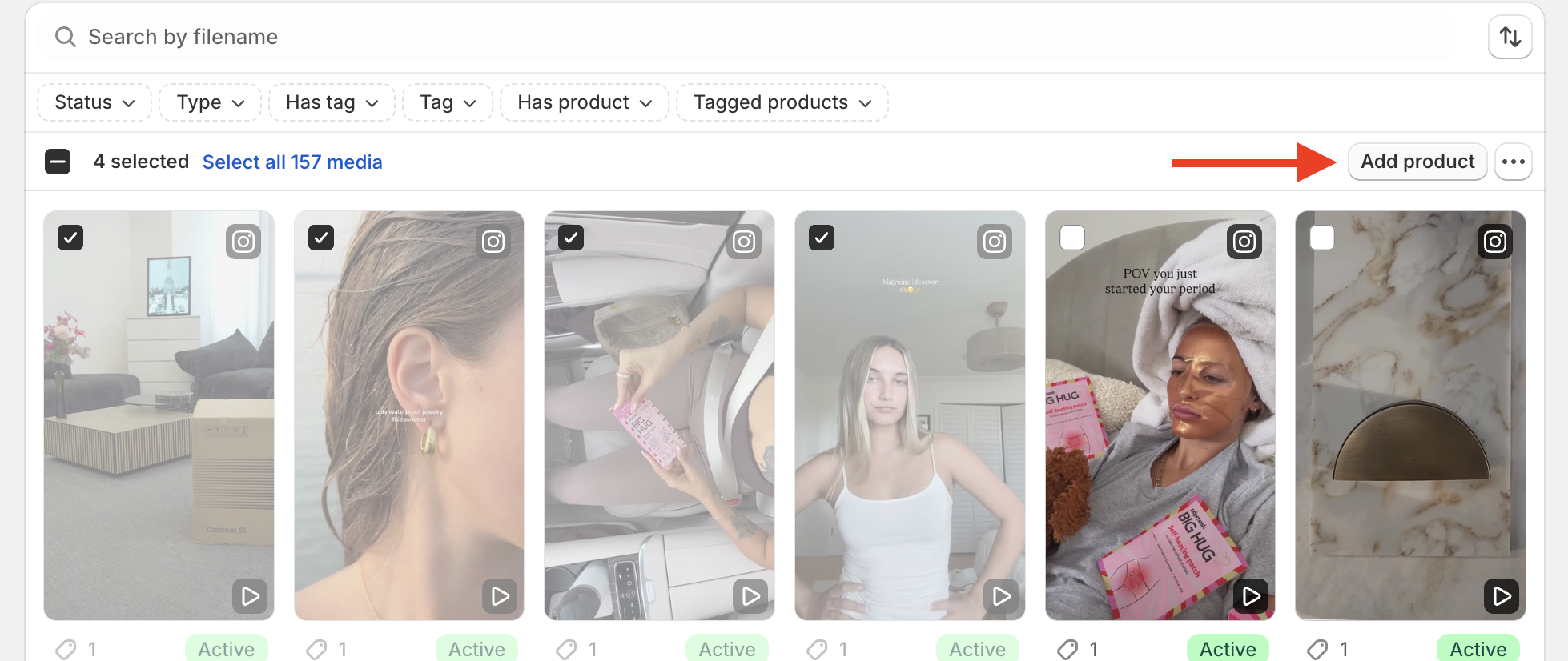
This is especially useful if you have several pieces of media that should link to the same product.
Get product suggestions from file names
Moast reads the file name of your media and, if it matches a product in your store, suggests that product as a tag. This works when you upload new media and on the media page for media already in your library.
During upload: if the media has no product yet, the product button shows the suggested product instead of the product picker. Click it and the product is tagged right away. You can still open the product picker to choose a different product.
On the media page: in the Call to action section, the suggestion appears below the product picker with a Suggested label. Click the suggestion to tag the product, or click the dismiss button to hide it.
File names that include the product title, the SKU, or the product handle give the best suggestions.
Tag Products During Import
Now you can tag products as you import new media — saving you an extra step later.
Here’s how it works:
Upload your new videos or images into Moast.
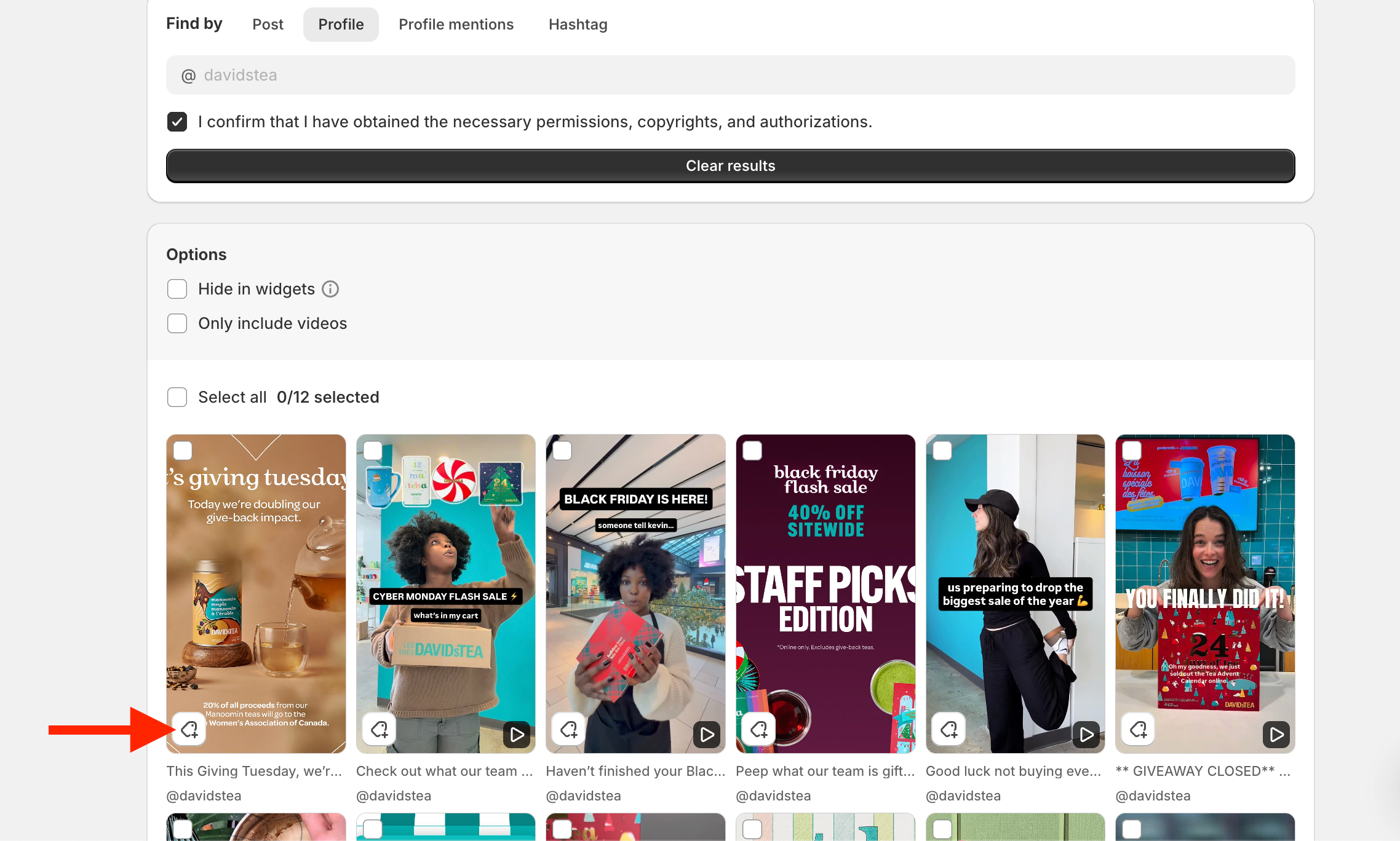
In the import screen, select the product(s) you want to tag.
Finish the import — your media will enter your library already tagged and ready to use.
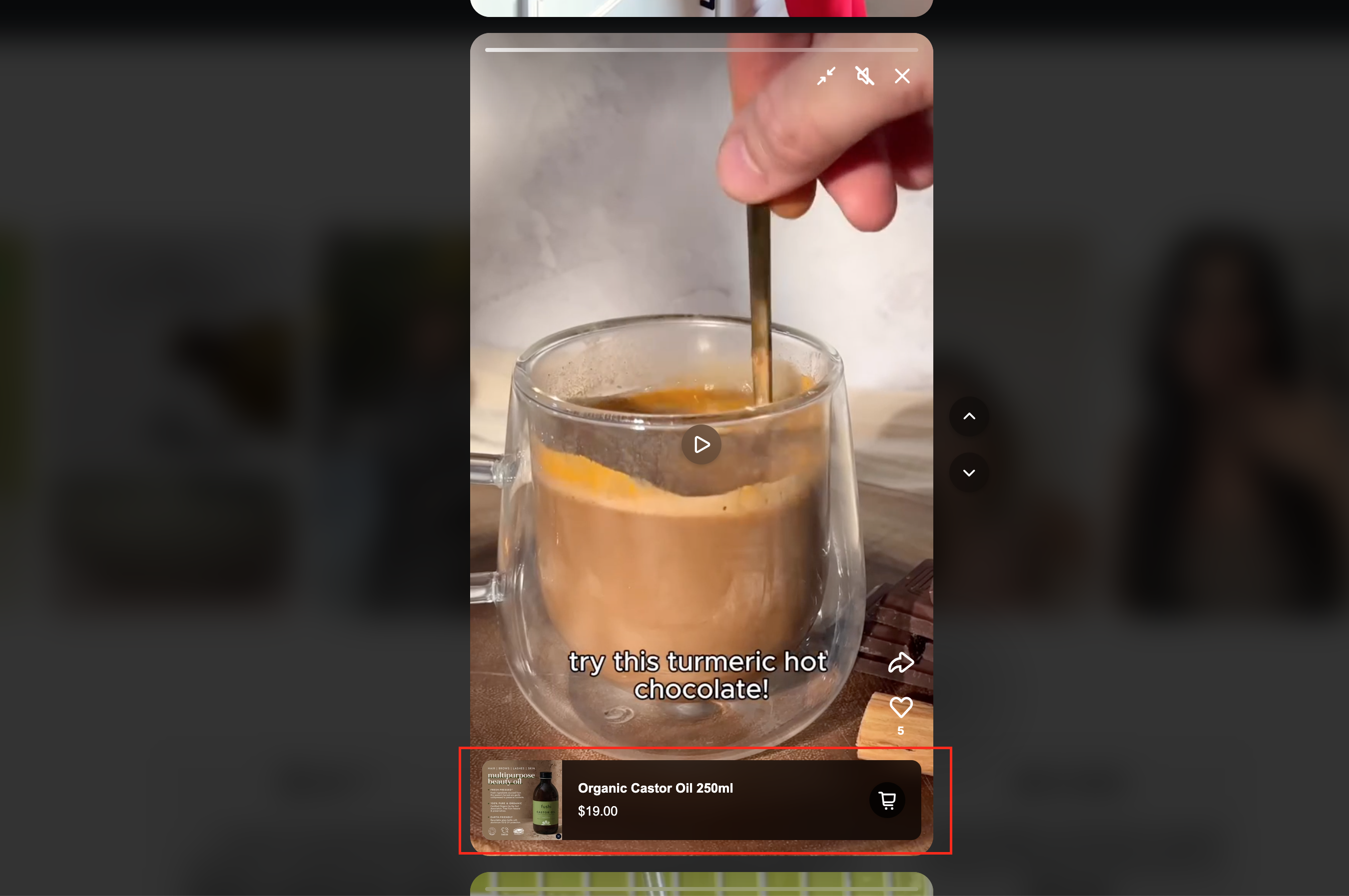
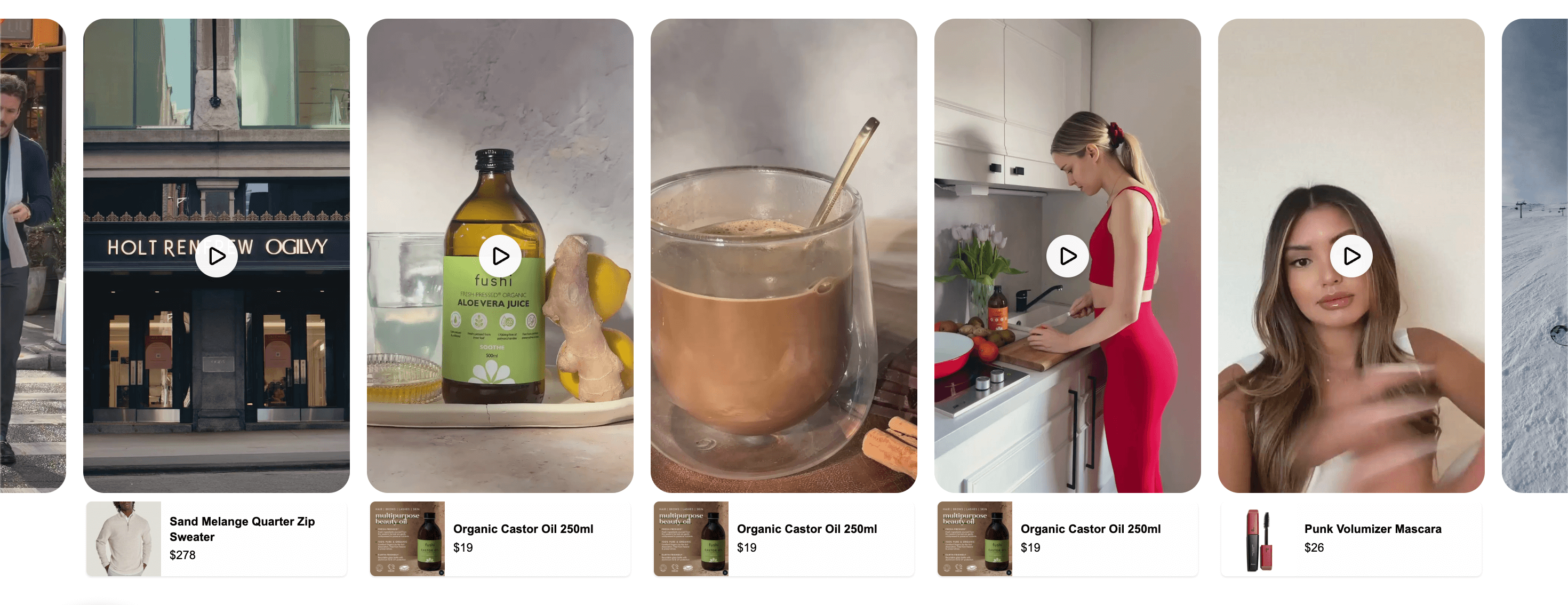
Tagging your videos with products adds a product card on your videos in full screen, making it easy for visitors to see which product is featured and add it directly to their cart.
If you don’t want your videos to be shoppable, simply remove the product tag or don’t add one.
When tagging products, you can choose where the product appears in the carousel:
Overlay on the slide
Below the slide
None (not displayed at all)
This setting is in your widget editor, inside the Moast app. Open the Shoppable tab and look for the setting called Product cards.
Want to tag multiple products on one video? This feature is available on our Pro plan!
To link a video to a collection, a page, or any URL instead, use the Other options menu in the Call to action section. See How to Add Call-to-Action Links to Your Videos.
Show or hide product cards in fullscreen
By default, products tagged on a video show as cards in the fullscreen player. You can hide the cards and keep the tags.
Open your widget in the editor.
In the Player tab, find Show product cards.
Turn the checkbox off to hide the cards. Products stay tagged for the Shop app and product matching.
Save your changes.
This setting is available for all widget types. It only shows when your videos open a player, so it hides when Open player is set to None.