
How to add CTA buttons to your videos
Updated 2 months ago
Add buttons to your videos that send shoppers to a colllection page, a page on your store, or any link you choose. These buttons appear as cards customers can tap while watching the video.
Before you start
You need at least one video or image in your media library. You add call-to-action links to individual media in the Call to action section of the media detail page.
Add a call-to-action link
In your Moast dashboard, go to Media and click the video or image you want to edit.
In the Call to action section on the right, click Other options.
Choose a destination:
Tag collection — link to a collection.
Tag page — link to a page on your store.
Tag custom link — link to any URL.
Pick the collection or page, or for a custom link enter the Button text and Link.
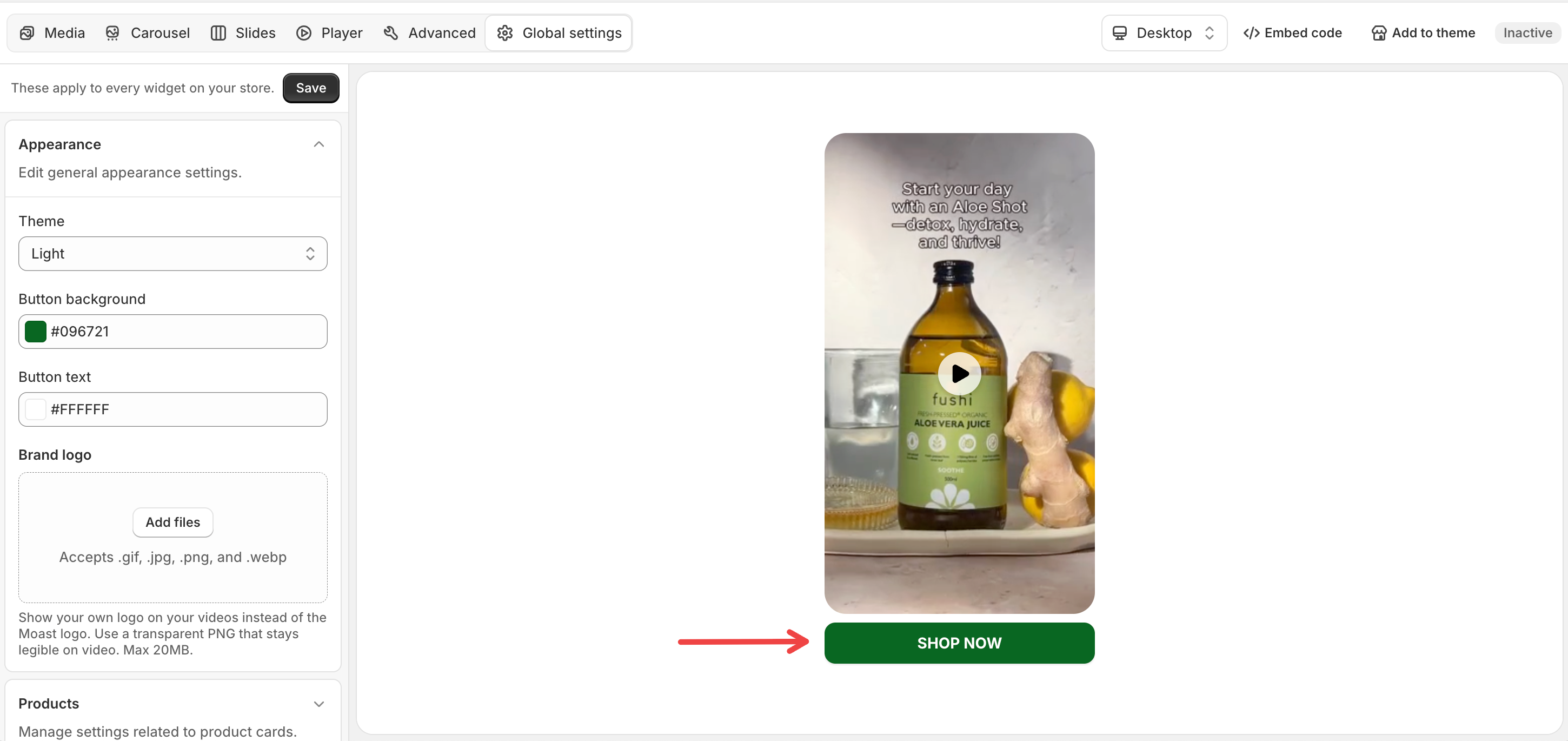
For a custom link, you can add an Image to show on the button. This image replaces the product thumbnail on the button. A custom link without an image shows as a centered button using your widget's button colors.
Click Save.
Reorder or remove call-to-action links
Tagged products and links appear together in one list in the Call to action section. You can reorder them and remove any you no longer want. To change a collection, page, or custom link, remove it and add it again.
To tag a product or variant instead, see How to make your videos shoppable.