
How to change a video thumbnail
Updated 4 months ago
Moast automatically creates a preview image for every video you upload. You can replace this default thumbnail with a frame from the video or with your own image.
Change a video thumbnail
Go to Media in your Moast dashboard.
Click the video you want to edit. This opens the video detail page.
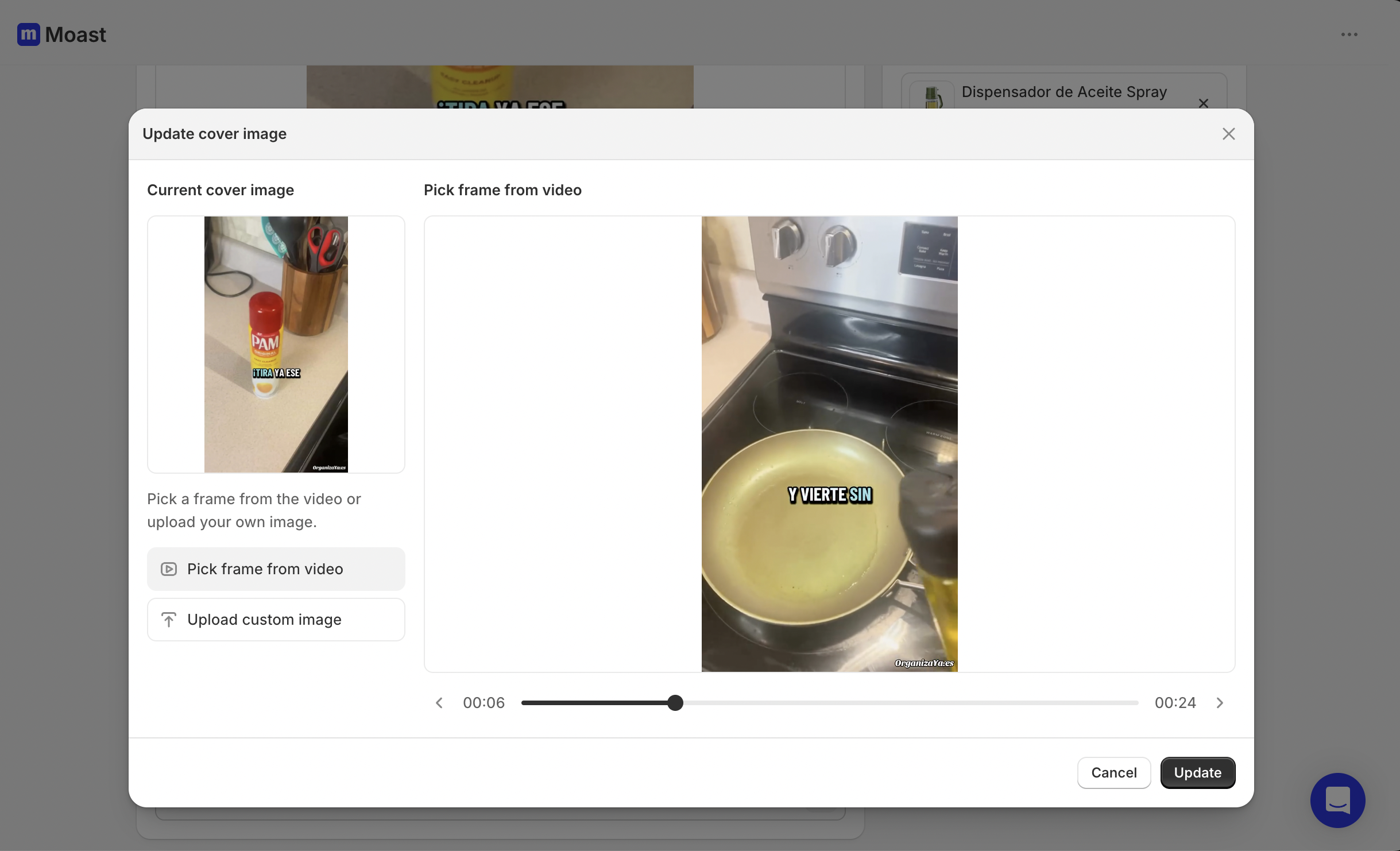
On the detail page, click the thumbnail preview called Cover image under the main video. It has a small pencil icon.
A thumbnail editor opens. Choose one of these options:
Pick frame from video: Use the slider and arrow buttons to move through the video and select the frame you want.
Upload custom image: Drag and drop an image file into the box, or click to browse your computer. Moast accepts GIF, JPEG, PNG, and WebP images up to 20 MB.
Click Update to confirm your choice.
On the video detail page, click Save to finish.
The new thumbnail appears in all widgets that show this video. You do not need to republish or re-embed the widget.
Best practices for video thumbnails
Match your slide shape. Use thumbnails that are the same size as your slides. If you are using a square slide, make sure your thumbnail is square too.
Choose a clear, sharp frame that shows what the video is about.
Avoid blurry or dark frames.
Consider adding text to your custom thumbnail to highlight a key message.
Use a large image for the best quality. At least 1280 × 720 pixels works well across all devices.
Thumbnail changes may take a short time to appear on your live store. If you do not see the new thumbnail right away, wait a few minutes and check again.
Updating multiple thumbnails
You must change each video thumbnail one by one. There is no bulk update option.