
Add a widget to your homepage
Updated 2 months ago
Add a video widget to your Shopify homepage by creating it in the Moast dashboard, choosing which videos to show, and publishing it to your theme.
Create your widget
Start in the Widgets tab to build a new widget for your homepage.
Open the Widgets tab in your Moast dashboard.
Click New widget.
On the Select widget type page, choose a widget type: Carousel, Stories, Featured video, Pop up, Grid, Single video, or Video banner.
Choose Anywhere as the placement. This lets you add the widget to any page on your store.
Enter a name for your widget, such as "Homepage Videos".
Click Create. The widget editor opens.
Choose which videos to show
In the widget editor, open the media settings and pick how you want to select videos. You can hand-pick videos manually or use labels to add them automatically.
Manual media selection
Pick the exact videos you want visitors to see on your homepage.
In the widget editor media settings, choose Manual as the media selection.
Click the Select media button.
Choose the videos from your library.
Drag them to set the order you want.
This gives you full control over every video and the order they appear.
Use labels for faster widget creation
If you have a large video library, use labels to group videos automatically. When you label a video in your Media Library, it gets added to any widget that uses a label condition matching that label.
In the widget editor media settings, choose All media as the media selection.
Click Add condition.
Choose Label as the condition type.
Enter the label you want to use, such as "homepage".
Save the widget settings.
If you have not created any labels in your Media Library, no videos will show up. You must add labels to your media first. Learn how to create and use media labels
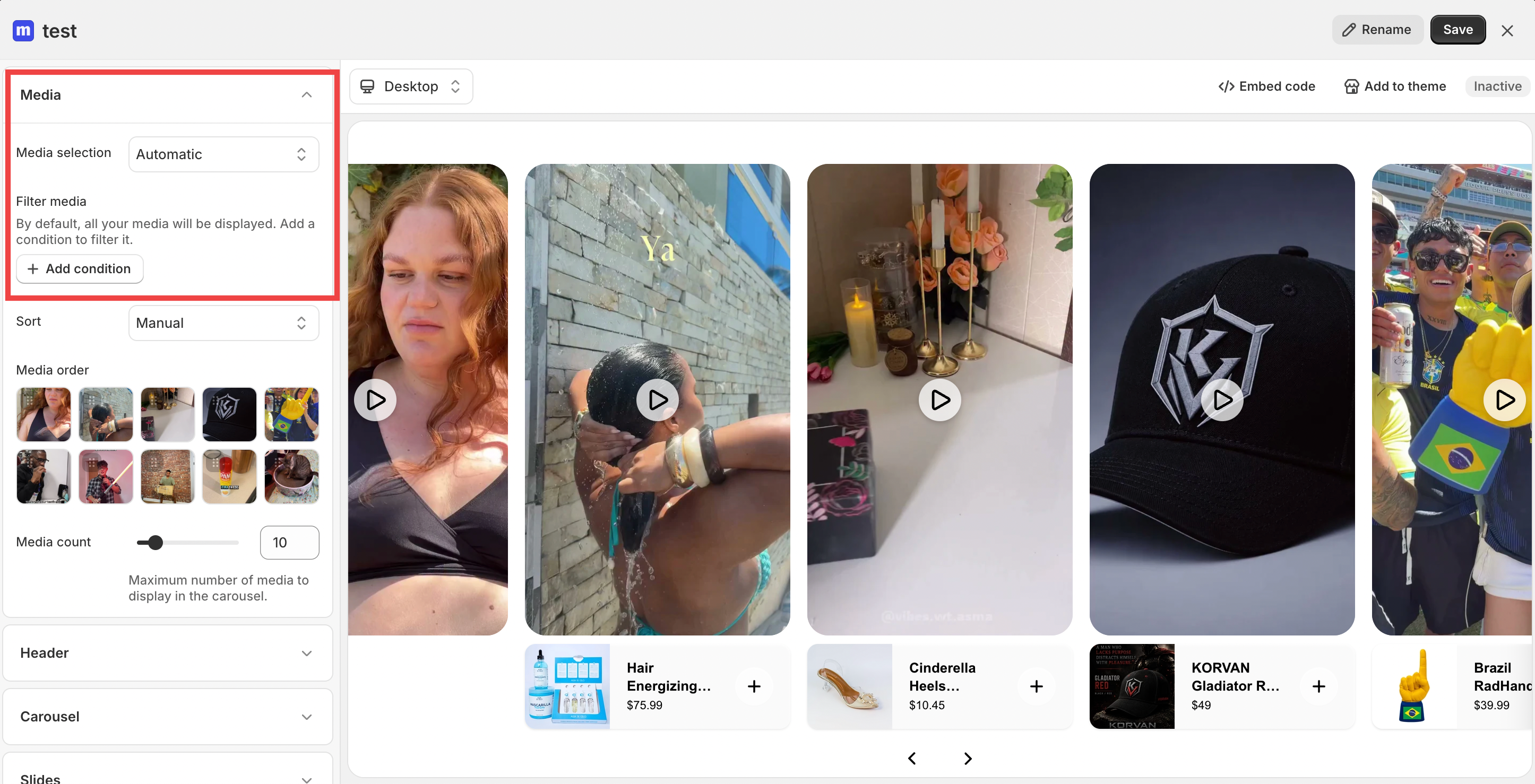
Now every video you label with "homepage" in your Media Library will automatically appear in this widget.
You do not need to edit the widget each time you add a new video. This is especially useful if you have a large library and want to keep your homepage widget up to date without manual work.
You can add more than one label condition. If you add multiple conditions, you can choose whether videos must match all conditions or any condition to appear.
Label-based media selection is available on the Pro plan.
Publish your widget
When you are ready to make the widget live, click Add to theme in the widget editor.
In the Add widget to theme modal, select Home as the page template.
If your theme supports app blocks, click Add to theme to place the widget automatically.
If your theme does not support app blocks, click Embed code, copy the Liquid code or HTML code, and paste it into your theme.
After publishing, the widget status shows as Active in the Widgets list. You can return to the editor anytime to update your videos or settings.