
Customizing Text in Your Product Slide-Out
Updated 4 months ago
You can change the text labels that appear in the product slide-out.
Updating these labels lets you match your brand voice, add urgency, or translate text for your shoppers.
Where to edit the text
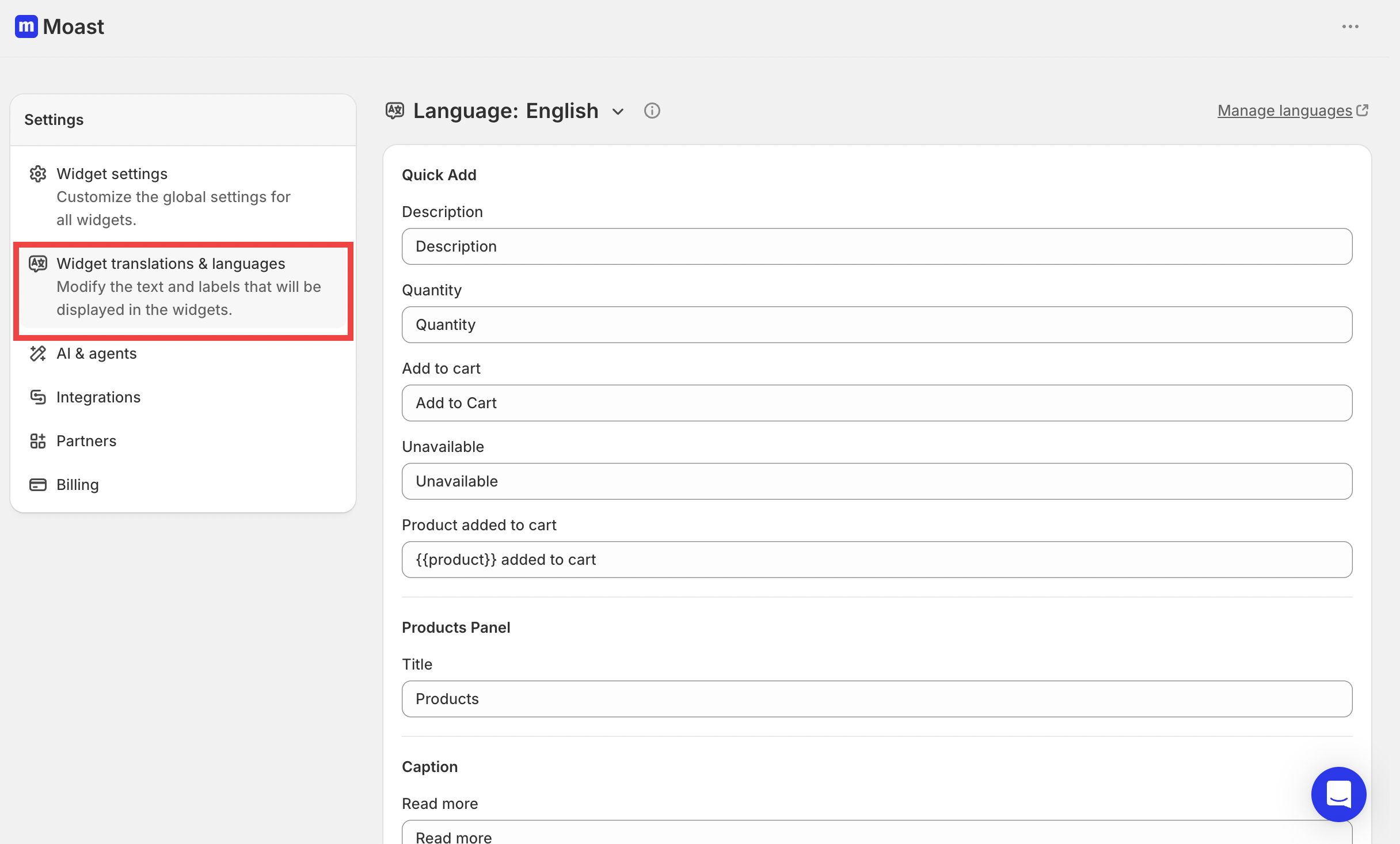
Go to Settings and select Widget translations & languages.
Fields you can change
The product slide-out uses these labels:
Description — the title above the product description.
Quantity — the label for the quantity selector.
Add to cart — the button text for adding the product to the cart.
Unavailable — the text shown when a product is out of stock or cannot be purchased.
Product added to cart — the confirmation message shown after a product is added.
How to update the labels
Open the Moast Admin.
Click Settings.
Select Widget translations & languages.
Edit the fields you want to change.
Click Save. The new text appears on your videos right away.