
Hide subscription options in your widget
Updated 4 days ago
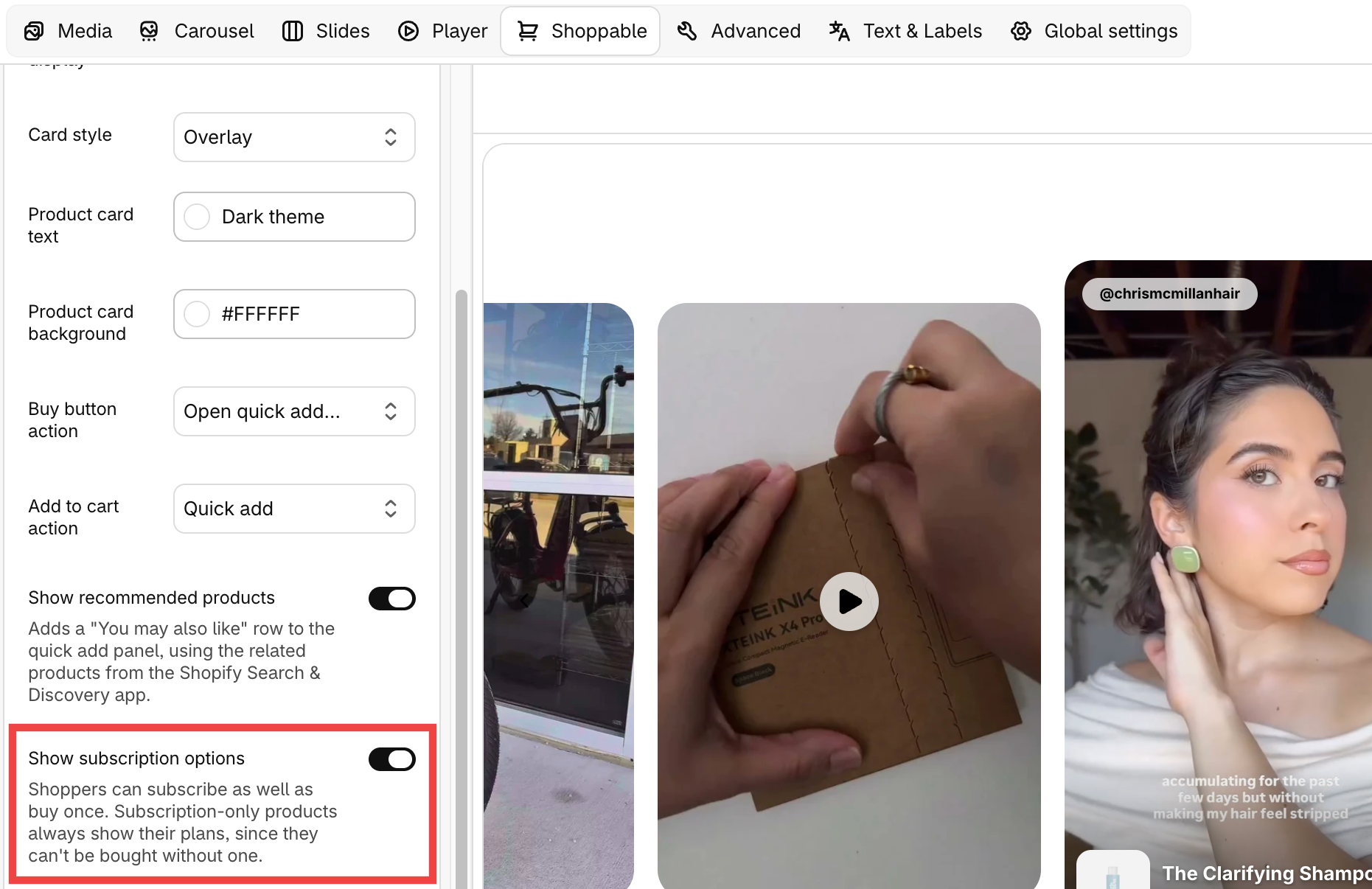
When a video sells a product with a subscription plan, the quick add panel shows One-time purchase and Subscribe options. If you sell mostly one-time products, hide these options for a widget with the Show subscription options setting.
Before you start
The setting only shows up when the widget's Buy button action is set to Open quick add panel with product details. If your buy button action is Go to product page or Open product page in a new tab, the quick add panel is not used and there is nothing to hide.
Hide subscription options
In Moast, open Widgets and open the widget you want to edit.
In the editor, open the Shoppable section.
Clear the Show subscription options checkbox. The setting is on by default.
Click Save.
Shoppers no longer see subscription options in the quick add panel for that widget. Subscription-only products always show their plans, because they cannot be bought without one.
For more on selling subscriptions in your videos, see Sell subscriptions right from your videos.