
How to change video autoplay and layout in the Carousel
Updated last month
The carousel widget editor includes settings for autoplay and slide layout. Autoplay mode controls which videos play automatically. Slide sizing controls how wide each slide is or how many slides appear at once.
How to change autoplay mode
Open your carousel widget in the editor.
Find the Autoplay mode setting under Carousel.
Select one of the four options below.
Save your changes.
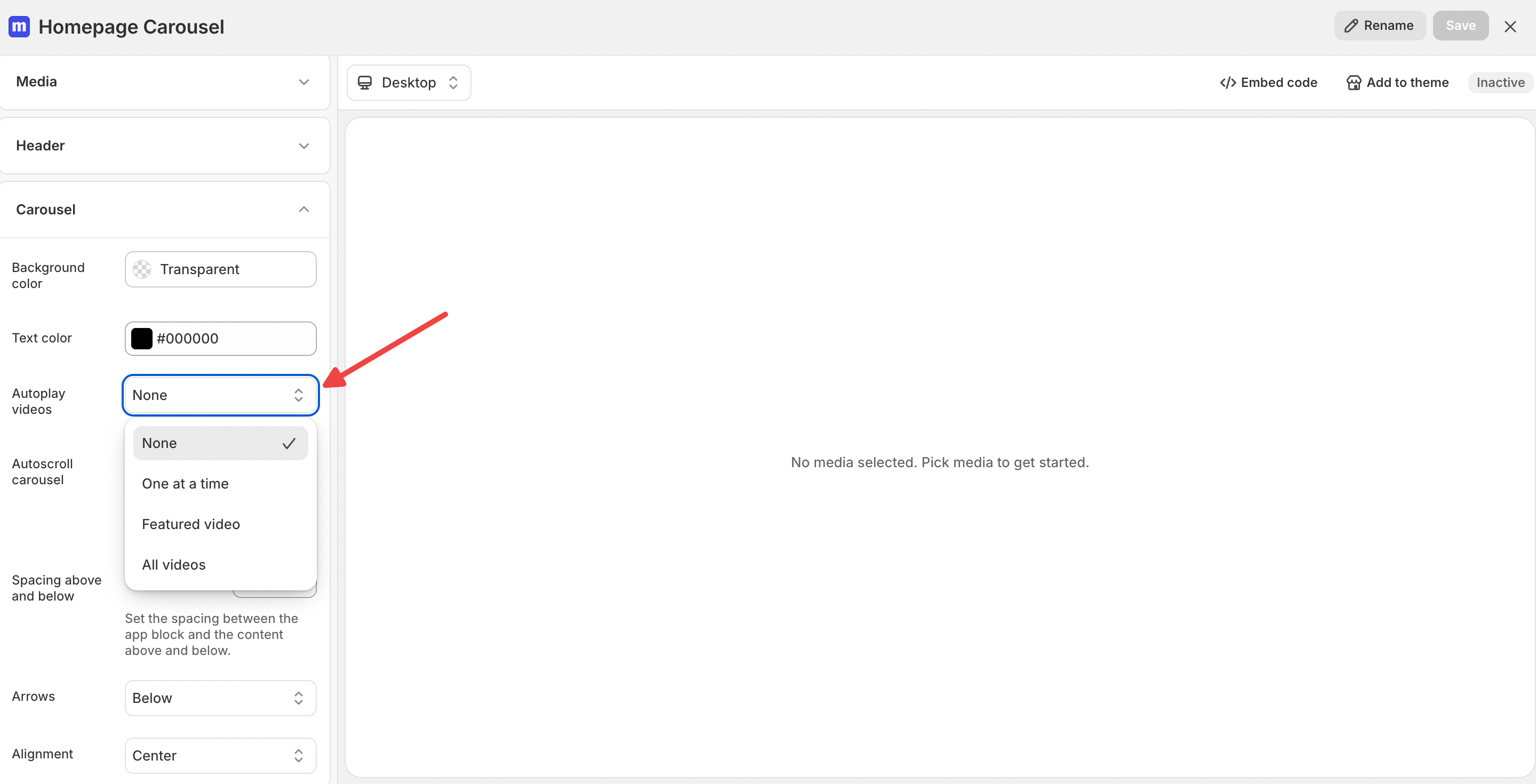
What each option does
All videos
All videos in the carousel play a loop automatically at the same time. The visitor must click the video to watch it.
Featured video
One video plays at a time in a larger, featured format. The other videos are still visible but smaller, and only the main video autoplays. Visitors can watch the featured video in the carousel without opening up the fullscreen player.
One at a time
One video plays at a time, moving through the carousel in order. Visitors can watch the video that is playing in the carousel without opening up the fullscreen player.
None
No videos autoplay and there is a play icon on the slide. Visitors must tap or click a video to start playback.
Change slide size and layout
The Slides section in the carousel editor controls how wide each slide is or how many slides are visible at once. The preview updates as you change these settings.
Open your carousel widget in the editor.
Find the Slides section in the sidebar.
Use the Slide sizing dropdown to choose Fixed size or Slides in view.
Save your changes.
Fixed size
Each slide has a fixed width. Use the Slide width field to control how wide each slide appears. You can also set a separate slide width for narrow layouts. These fields only show when Slide sizing is set to Fixed size.
Slides in view
A set number of slides fit in view at once. Choose how many slides appear in each layout:
Wide layout (over 700px): range 1 to 8, default 4.
Narrow layout (700px and under): range 1 to 4, default 2.
These fields only show when Slide sizing is set to Slides in view.
Wide and narrow describe the space the widget sits in, not the visitor's screen. A widget in a narrow column uses its narrow layout even on a desktop screen.