
Moast + Kaching Integration
Updated 3 days ago
The Kaching integration shows Kaching Subscriptions and Kaching Bundles offers inside the quick add panel of your shoppable videos.
When a product has a Kaching offer, shoppers see Kaching's picker under the variant options, and picking an offer adds the product to the cart with the Kaching discount applied.
This integration is optional and separate from the built-in subscription options Moast shows in quick add.
Before you start
Set up your subscription and bundle offers in Kaching Subscriptions or Kaching Bundles first. Those offers live on your products, not in Moast, and Moast does not create them.
If a product in your video has no Kaching offer, there is nothing for Moast to show.
Turn on the Kaching integration
In Moast, go to Settings > Integrations.
Find the Kaching card and click Manage.
If Moast asks for permission with Allow Moast to read subscription plans, click Grant access. Moast needs this to read the plans Kaching adds to your products.
Turn on Show Kaching offers in quick add.
Click Save.
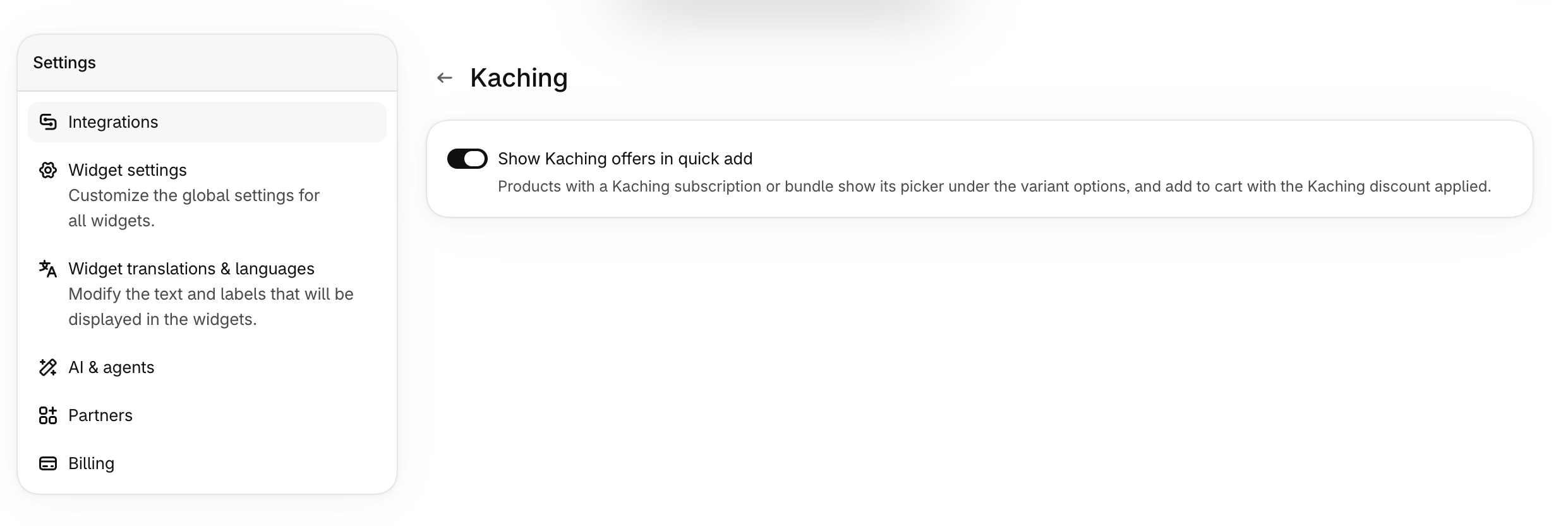
Once the integration is on, no per-widget setup is needed. Kaching offers appear in the quick add panel for any product that has one.
How this works with the built-in subscription options
Any product with a subscription plan already shows One-time purchase and Subscribe options in quick add, with no integration to set up. Kaching Subscriptions works there too.
The Kaching integration adds something different: Kaching's own offer picker, including bundle offers, below the variant options.
For more on the built-in subscription options, see Sell subscriptions right from your videos.
Need Help?
If you need help setting up the Kaching integration, reach out in the chat and we'll get it sorted.