
Remove the Moast logo from your videos
Updated 2 months ago
You can replace the Moast logo on your videos with your own logo. This is a Pro feature, and you set it up inside the widget editor under Global settings > Appearance > Brand logo.
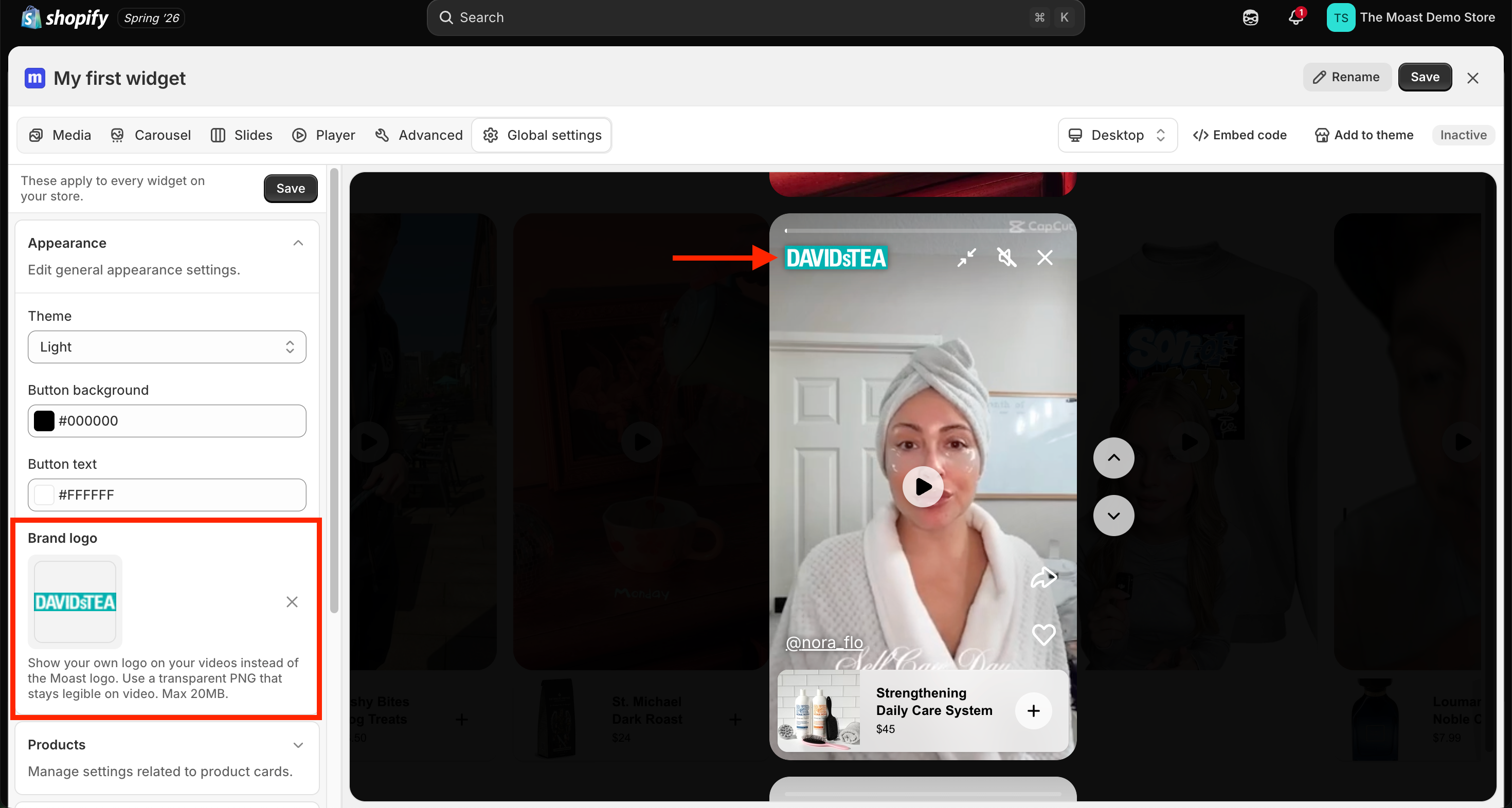
Set your own logo
This is a global setting that applies to all the widgets on your store, so you only need to do it once.
In Moast, open Widgets.
Open the widget you want to edit.
In the editor, go to Global settings.
Open Appearance.
Next to Brand logo, click Upload logo and choose your image.
Click Save.
Your logo replaces the Moast logo in the player.
Remove your logo
If you added a logo and want to take it off a widget, open Global settings > Appearance, click the Remove logo icon next to Brand logo, then click Save.
Logo requirements
Use a transparent PNG that stays clear on video. Moast accepts GIF, JPEG, PNG, and WebP files up to 20MB.
If the setting is locked
The Brand logo control is a Pro feature. Upgrade to Pro to replace the Moast logo, and use the 14-day free trial to preview it first.
For help opening and saving widgets, see How to Use the New Widget Editor.