
Tag products with AI
Updated 3 days ago
Moast can suggest the right product for your videos, so you tag them in one click instead of searching your catalog. You always decide: Moast never tags a product without your approval.
Before you start
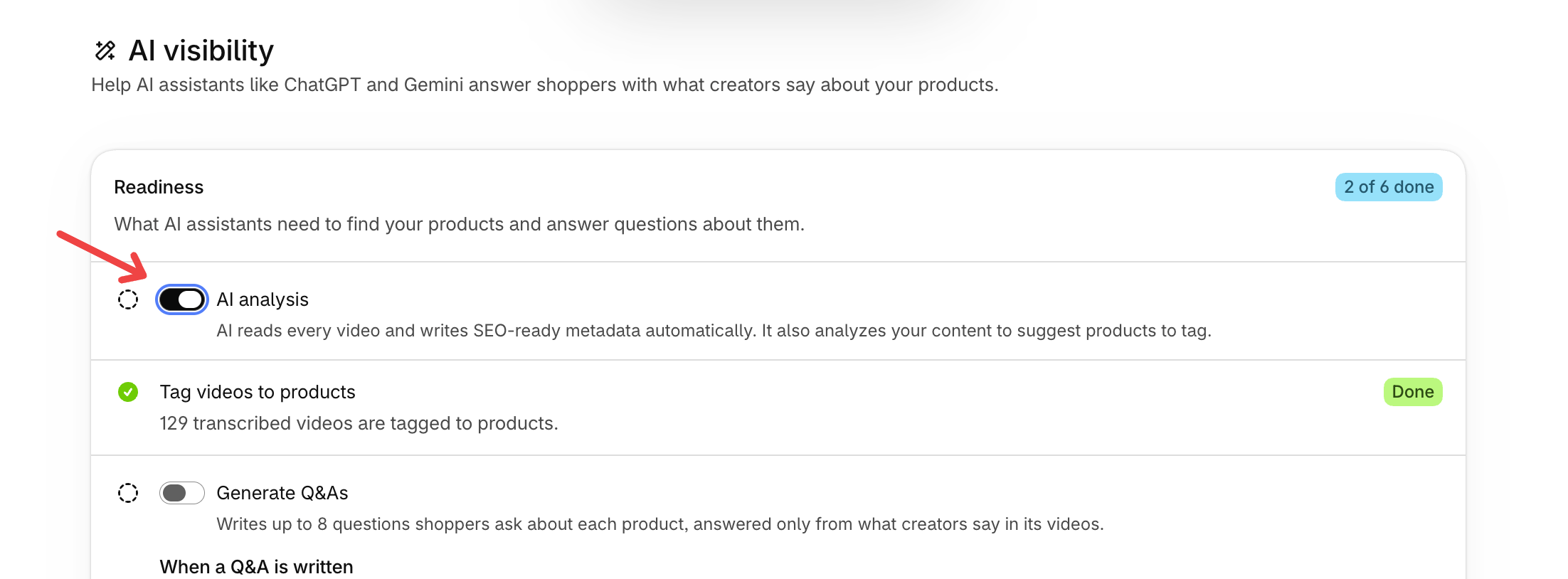
Turn on the AI Analysis setting in the AI & Agents section in your settings. Moast analyzes your videos first, then suggests products based on what each video shows.
AI-matched suggestions are available on the Pro plan and do not appear during a free trial of Pro.
Tag a product on a video's page
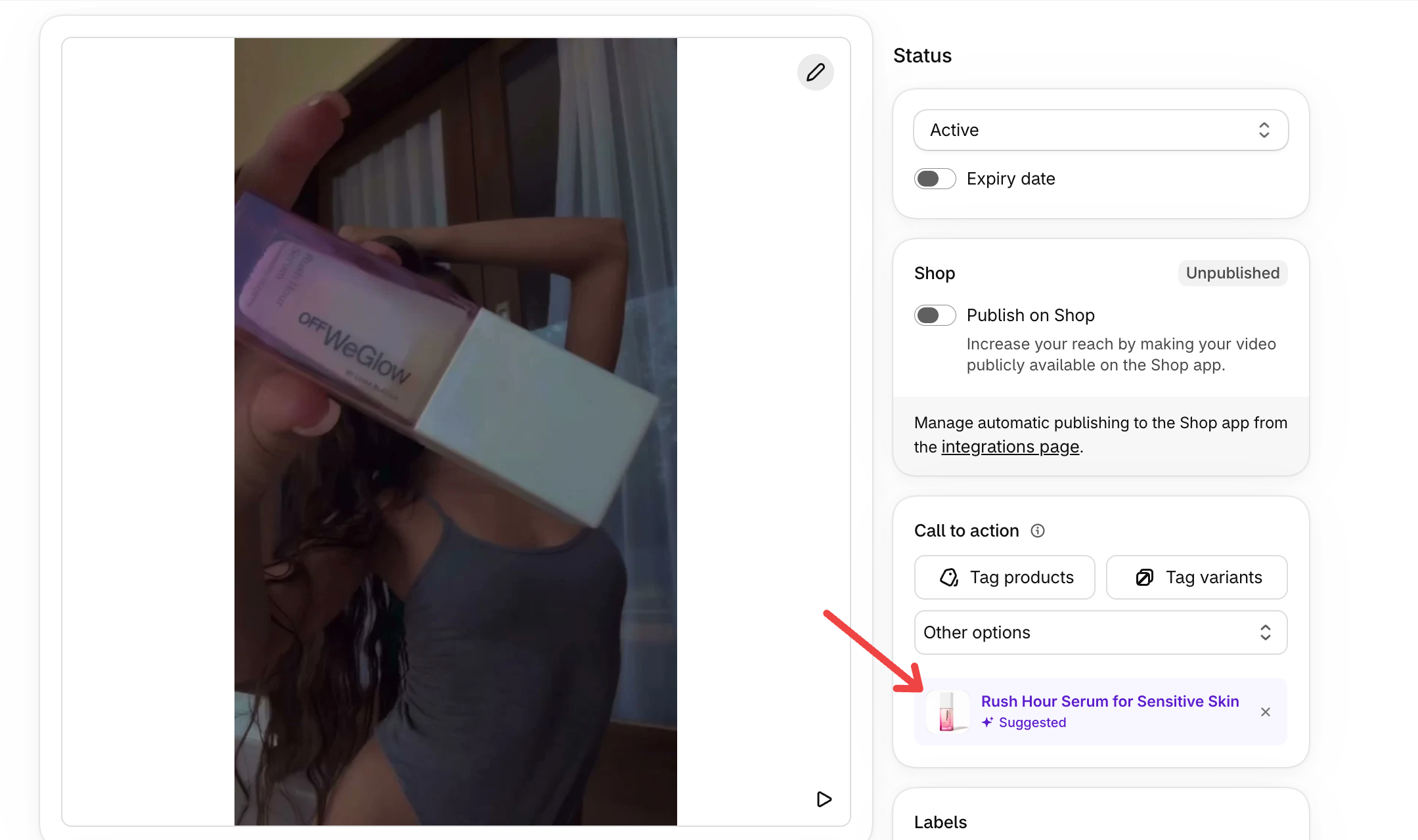
On the video's page, Moast matches the video with your product images using AI. If there's no image match, it falls back to the file name.
Open the video from your Media library.
In the Call to action section, look below the product picker for a row labeled Suggested. It can show one or more suggested products, each with its title and image. Shops with multi-product tagging see up to five suggestions per video.
Click a suggestion to select that product. You can select more than one suggested product, then save the page. The selected products are now tagged on your video.
Not the right product? Click Dismiss suggestion to hide it. Moast won't suggest that product for this video again.
Review suggestions in bulk
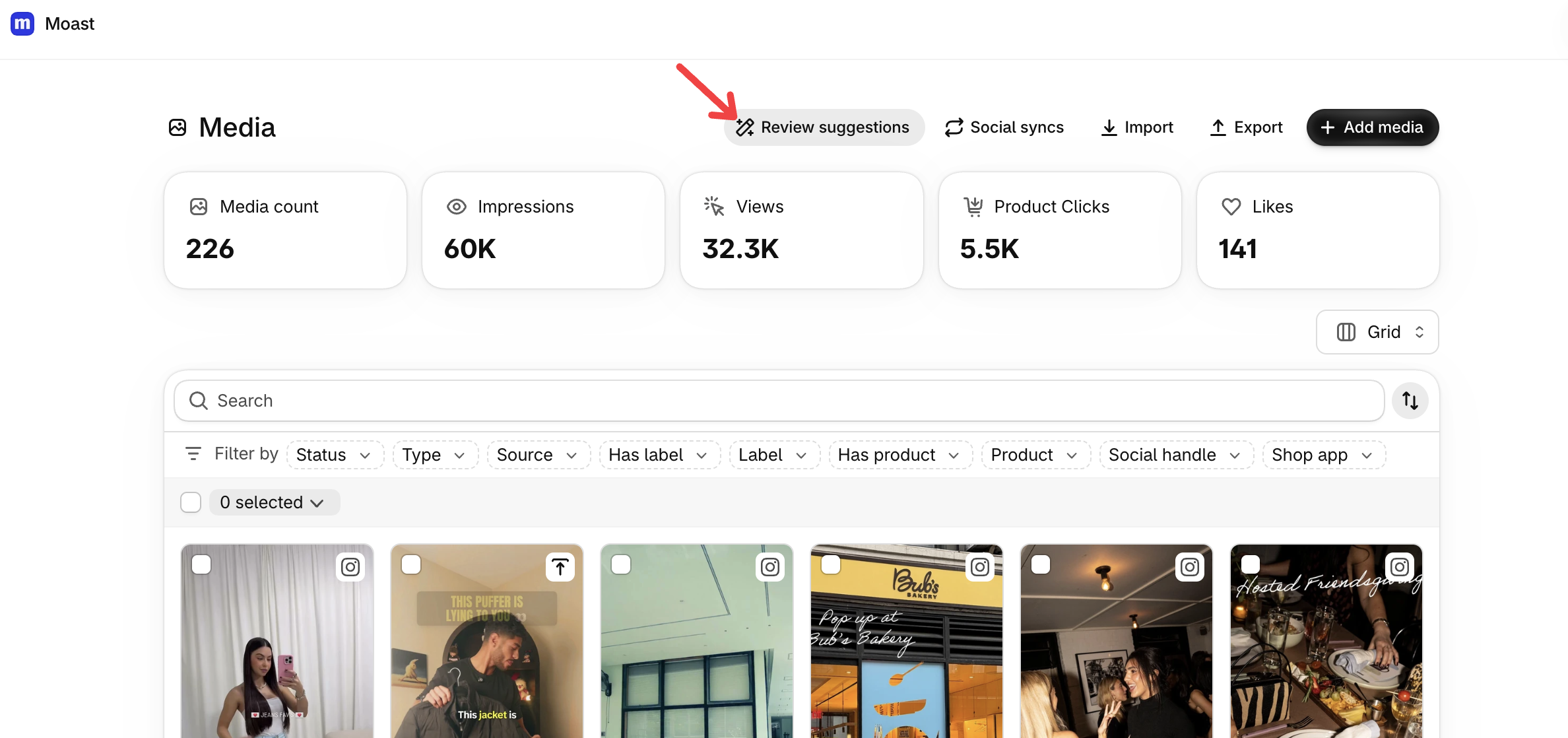
Review product suggestions for all your untagged media on one page, instead of opening each video. Image matches need the Pro plan; without it, you'll see filename matches only.
In the Media library, click Review suggestions.
Each row shows the media, its suggested product or products, and under Matched on whether Moast matched it by Image or Filename.
Click Apply to tag the media with the suggested products shown, or Reject to dismiss them. Moast won't suggest a rejected product for that media again.
Select several rows, then click Apply suggestions or Reject suggestions. Bulk actions apply only to the rows you selected.
The page shows up to 50 suggestions at a time. While Moast is still checking your media, a message at the top tells you how many items it is still checking.
No suggestion showing up?
Check that AI Analysis is on in Settings. AI suggestions only run after the video has been analyzed. If a suggestion was already dismissed, it won't appear again for that video.
Once a product is tagged, your video shows a product card, making it shoppable. See How to make your videos shoppable.