
Add captions to carousel slides
Updated 2 weeks ago
Show a caption under each slide in your carousel by writing the caption on the video in your media library, then turning on Show captions below slides in the carousel widget editor. Captions are a Pro feature.
On the Free plan you can write captions and preview the setting in the editor, but your changes are not saved until you upgrade to Pro or start a free 14-day trial.
Write the caption on your media
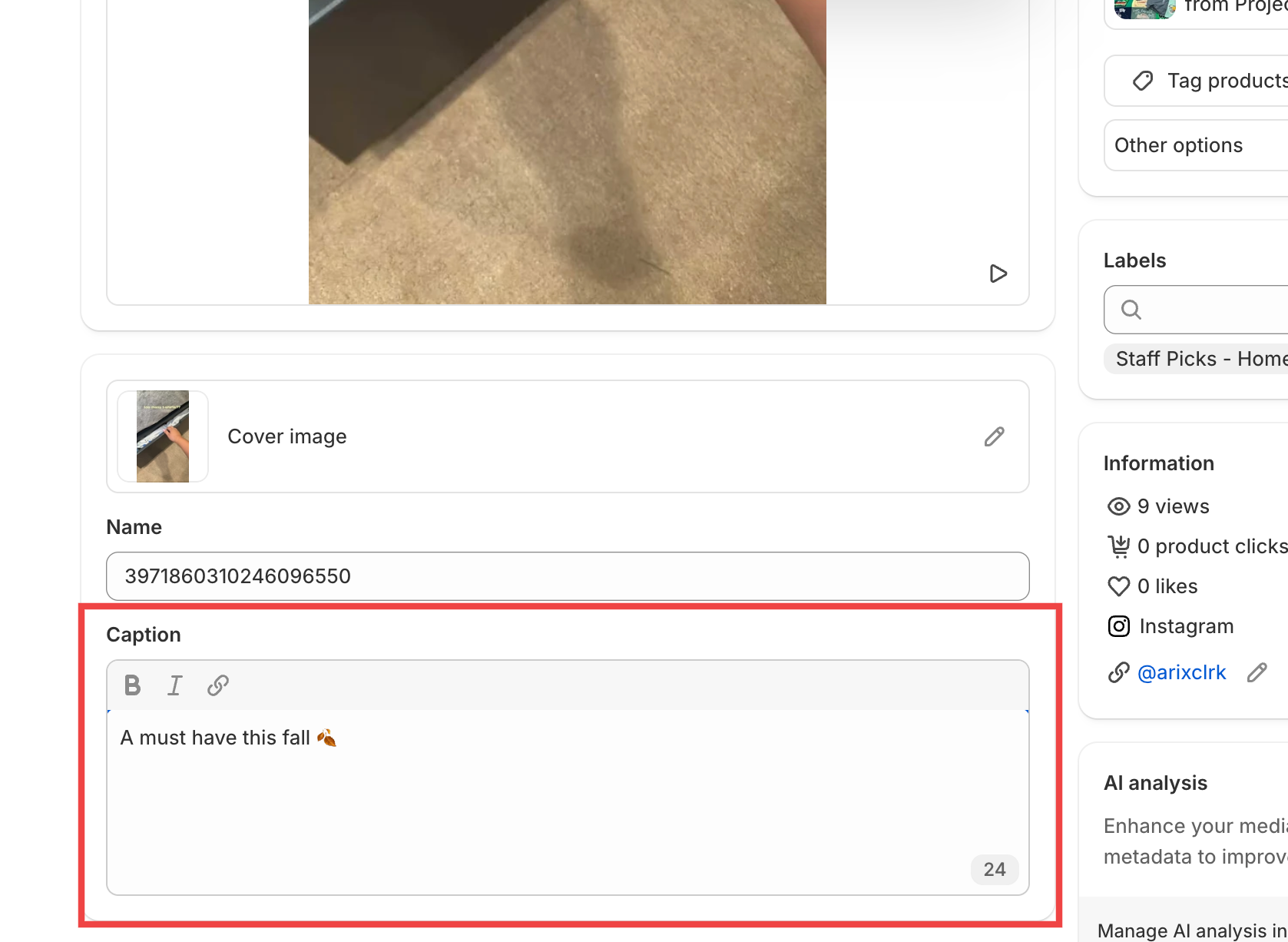
Every video in your media library has its own caption. You write it once here, and any widget can use it.
In the Moast dashboard, open Media.
Click the video you want to caption.
Find the Caption field at the bottom and write your caption. You can use rich text formatting, like bold or italics.
Save your changes.
If your video came from Instagram or TikTok, its original caption is imported automatically. You can replace it with your own text at any time.
Turn captions on in the carousel widget editor
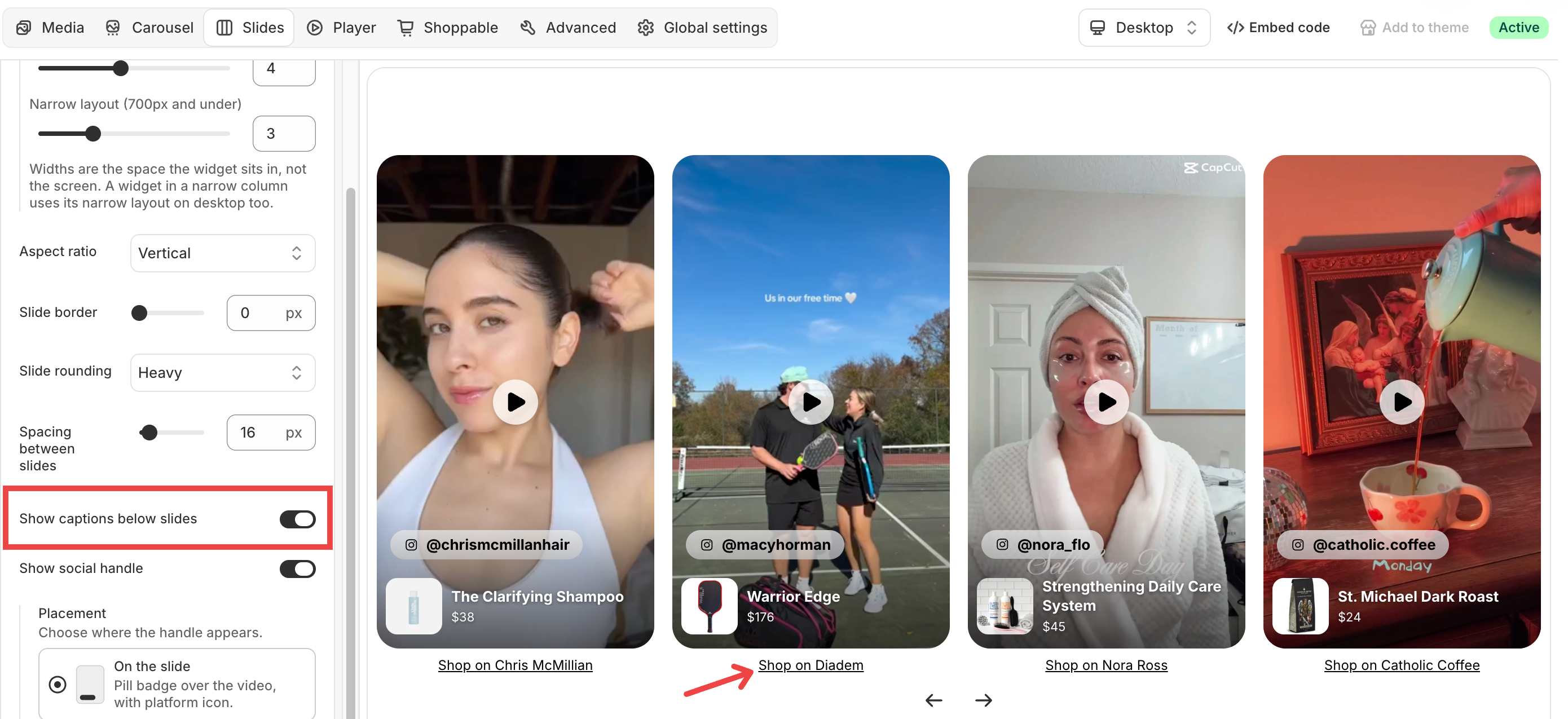
One setting controls this. When it is on, every slide shows its caption underneath.
In the Moast dashboard, open the widget you want to change.
In the Slides section, turn on Show captions below slides.
Click Save.
Captions now appear under each slide on your storefront. If you don't see them, check that the video has a caption in your media library.
Good to know
Show media captions in the Player section is a different setting. It controls captions inside the video player when a shopper opens a video, not the captions below your slides. See Show captions on videos in fullscreen for the full setup.