
How to Embed Shoppable Videos in Your Emails
Updated 2 months ago
Moast lets you turn your videos into clickable email embeds that drive traffic back to your store.
Since email clients don’t support video playback, Moast generates a GIF-style preview that links to your video on your site or any page you'd like.
Using Klaviyo? Learn how to connect your Klaviyo account and sync your email embeds.
Step 1: Create an Email Embed
Go to Email embeds in your Moast dashboard
Click Add email embed
Select the video you want to use
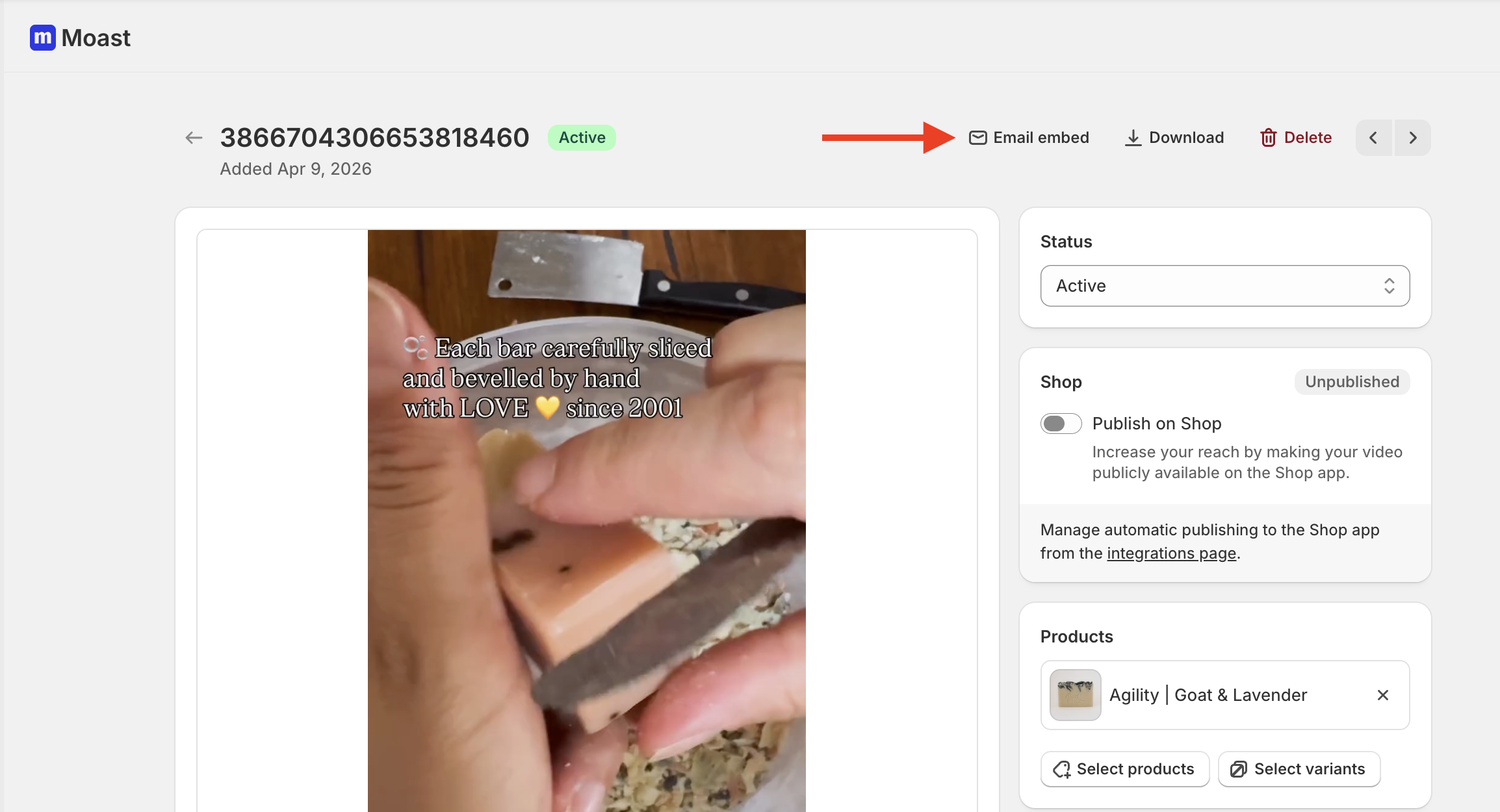
You can also create an email embed directly from your Media Library by opening a video and clicking “Email embed” at the top.
Step 2: Customize the Embed
You can customize how your embed looks:
Name – for internal use
Video Link (Optional) – Clicking the video opens this page. Leave it blank and the video won't be clickable.
If you want to link to the video on your site:
Open the video on your site
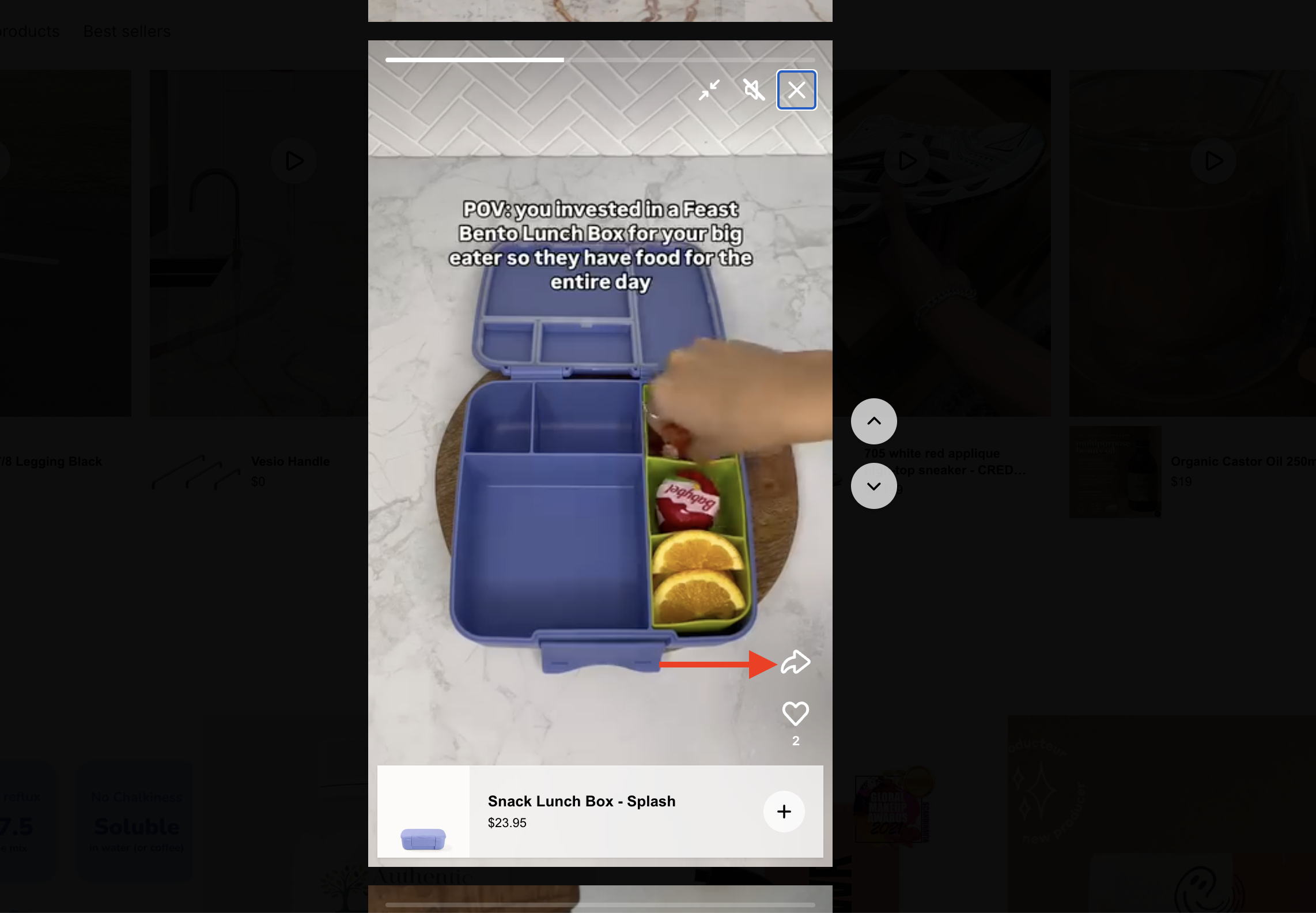
Click the share icon (if you have the share icon available)
Copy the video link
Paste it into this field.
This lets you link directly to a specific video, as long as it’s available on your site.
Preview duration – how long the preview plays
Aspect ratio – vertical or other formats
Width – size of the embed in your email
Rounding – corner style
Show play icon – toggle play button on/off
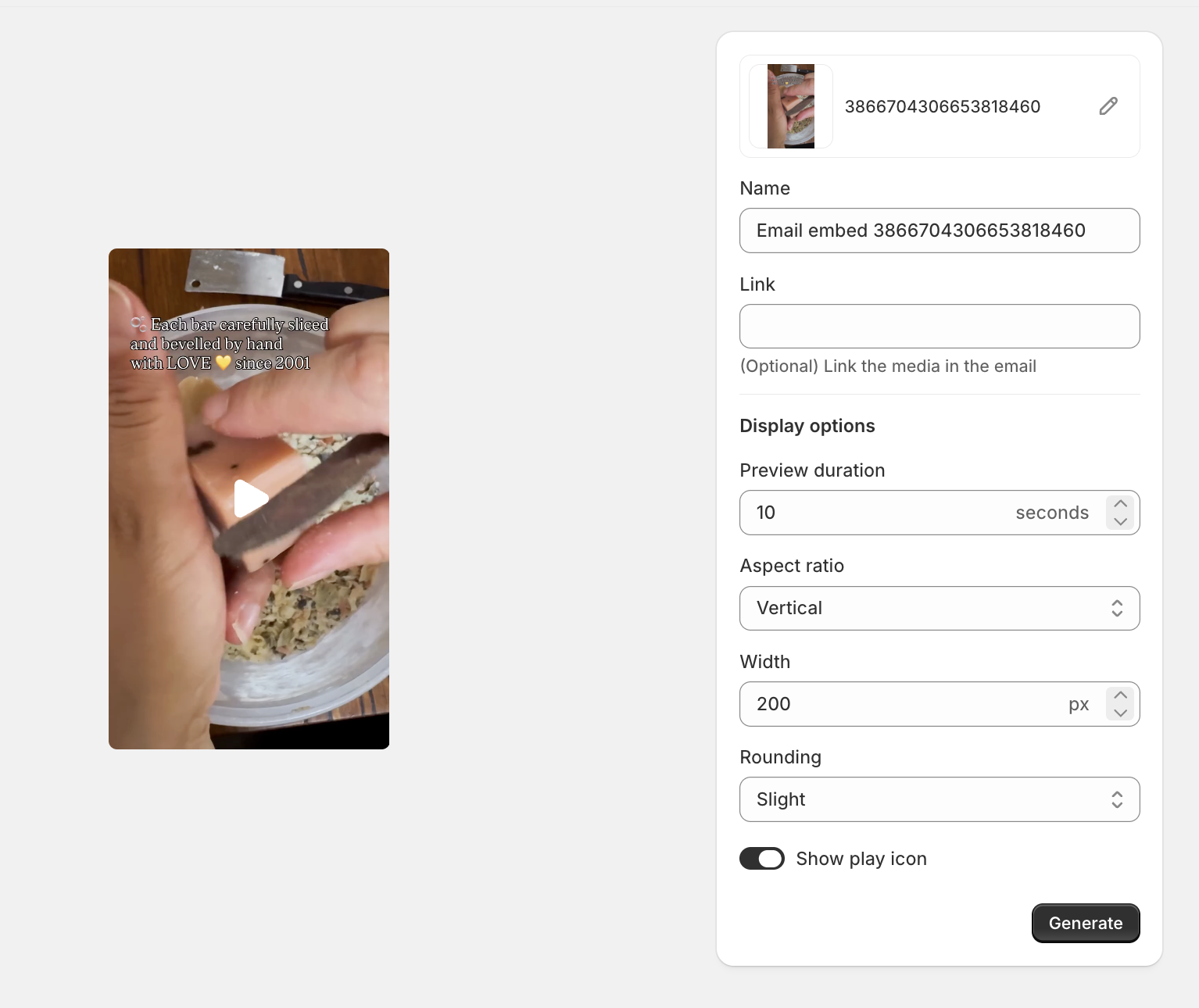
Once you're ready, click Generate.
📌 Note: After clicking Generate, it can take up to a minute for your email embed to be ready.
Step 3: Copy the Embed Code
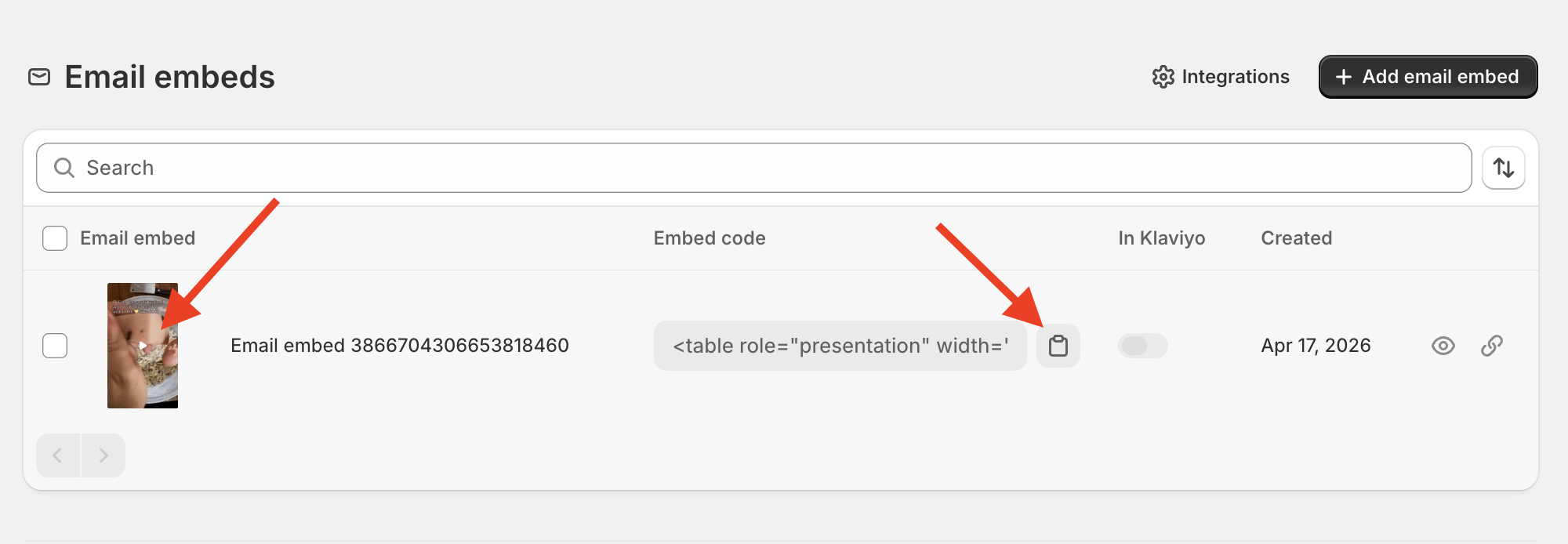
After generating, you’ll see a copyable HTML embed code.
Click the copy icon to copy the code, or click the thumbnail to open and copy the full embed code.
Preview and send a sample email
After you generate the embed, the preview shows your video inside an inbox-style email layout, so you can see how it fits below the sender and subject details. Wider embeds shrink to fit the preview.
You can send a sample email to check how the embed looks in a real inbox before you use it in a campaign.
Open the Preview for your email embed.
Enter the email address where you want to receive the sample.
Click Send sample.
Open the message in your inbox and check how the video looks.
The sample includes example text around the video. Sending fails if the email address is not valid, if the embed has not finished generating, or if the embed has no media. If it fails, check the address and wait until the embed is ready, then try again.
Step 4: Add to Your Email
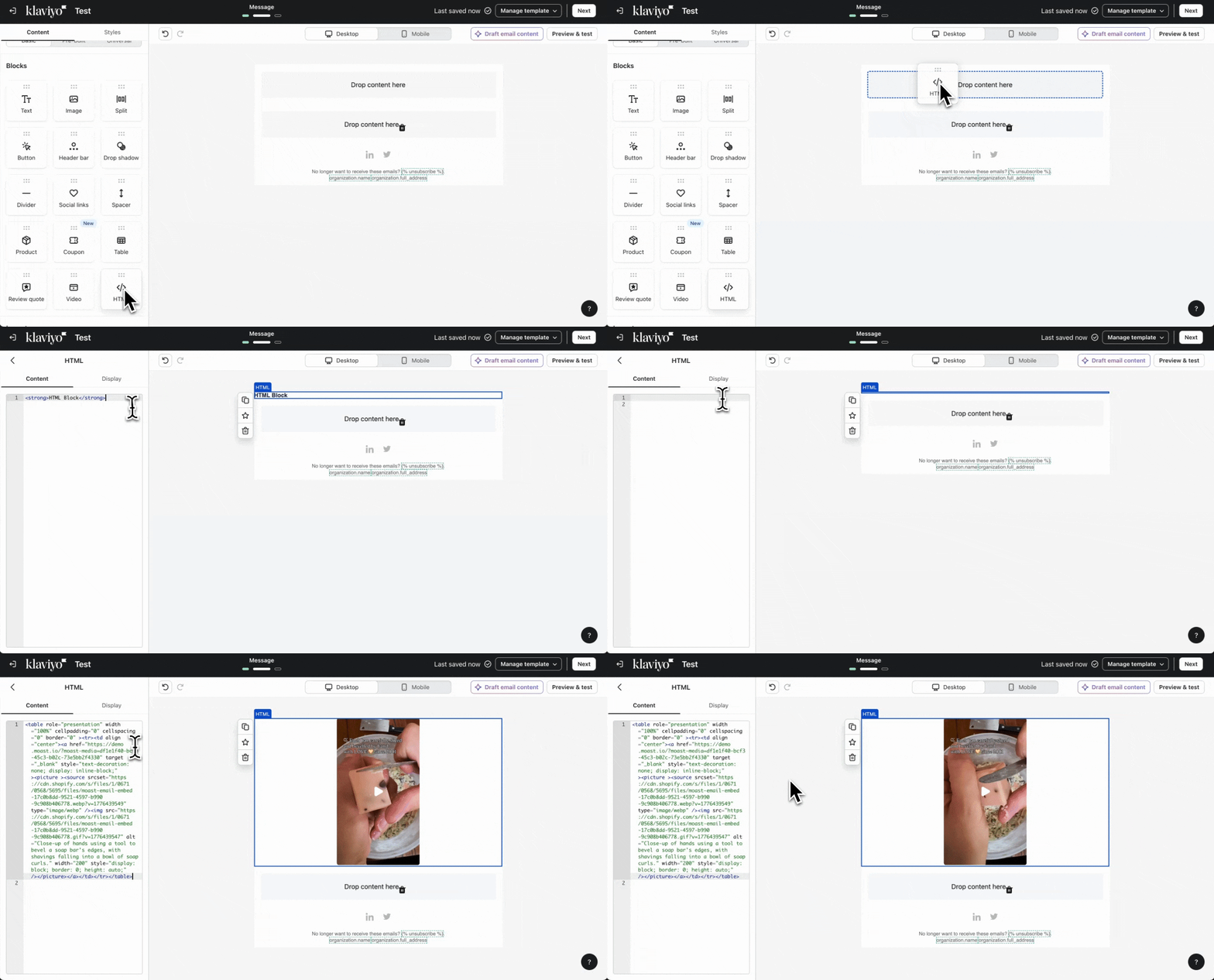
In your email platform (like Klaviyo):
Add an HTML block
Paste the embed code
Save your email
Your video will appear as a clickable animated preview that links to your site (or the link you choose).
Rename an email embed
You can change the name of an existing email embed without creating a new one or changing the video.
Go to Email embeds in your Moast dashboard.
Find the embed you want to rename and click the Pencil icon.
Enter a new name in the Rename email embed modal and click Save.
The name must not be empty. If you leave it blank, an error appears in the modal.
Need help? If you need help setting this up, click the chat bubble in the bottom right corner and we’ll help you get your email embed live.