
Fill product widgets with backup videos
Updated 3 days ago
Backup videos fill your product page widgets when a product has no videos of its own, or not enough. Videos tagged to the product always show first, and backup videos fill the empty spots, so no product page ends up bare.
What backup videos are for
When your widget uses Smart auto-match, a product page only shows videos tagged with that exact product. New or less popular products often have none, which leaves the widget empty or half full. The backup setting fills the rest of the widget with other videos from your library, without repeating videos already on the page.
Before you start
Backup videos work on product page widgets that use Smart auto-match. Widgets with Custom product feeds and universal widgets do not use backup videos.
Backup videos are a Pro setting.
Turn on backup videos
Open the Widgets tab in your Moast dashboard and open your product page widget.
In the Media section, find the group called When a product doesn't have enough videos.
Turn on Show other videos. This setting is off by default.
Under Choose videos, pick how backups are chosen: Pick videos or Match by rules.
Save your widget.
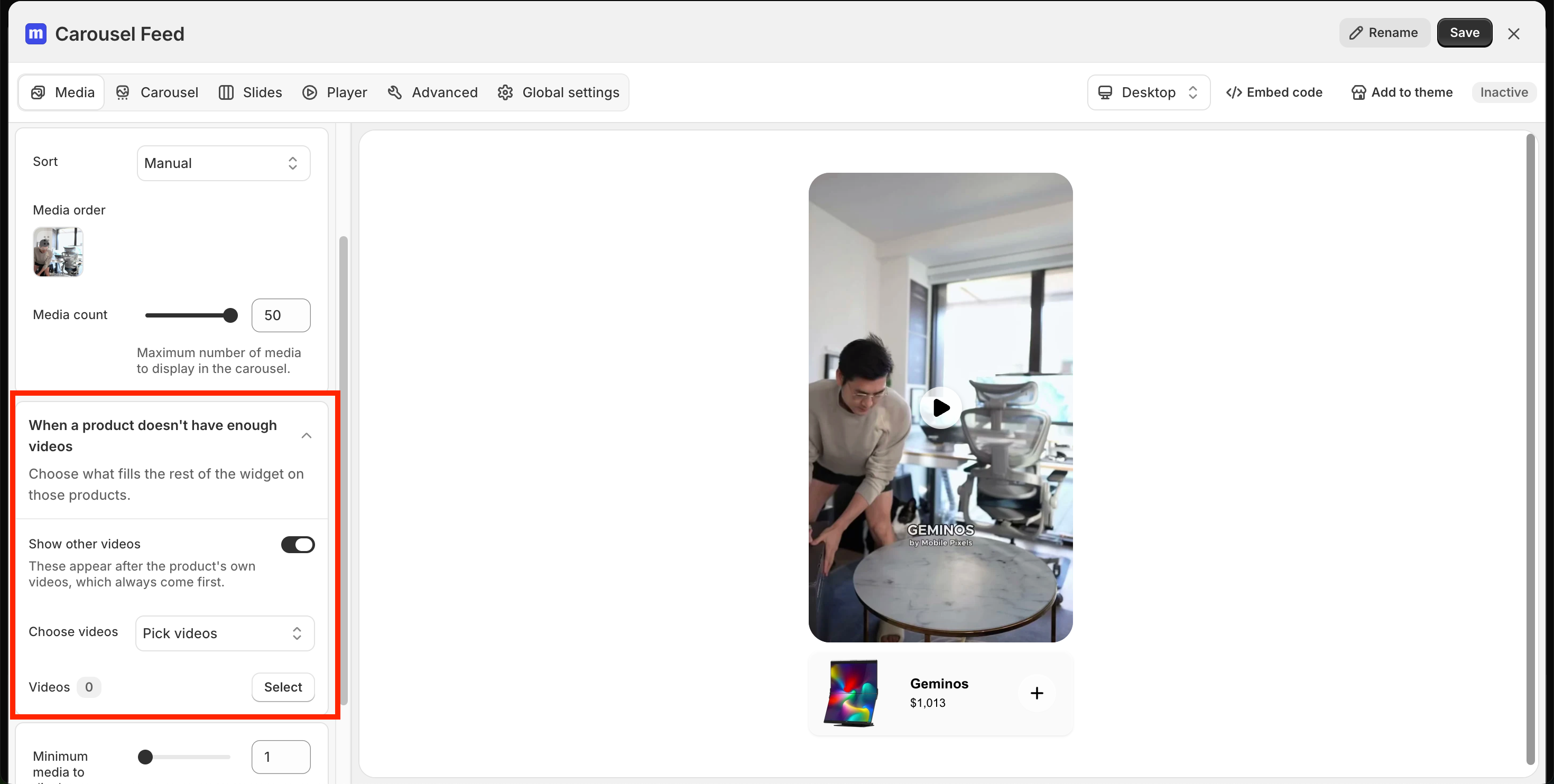
Pick videos
Pick videos lets you hand-pick the videos that fill empty widgets. Choose the videos you want as backups in the Videos picker, and they show on your pages in that order.
Match by rules
Match by rules chooses backup videos for you with filters. You can add up to 3 rules:
Type: Images or Videos
Source: Instagram, TikTok, AI, or Collect
Label: videos with or without a specific label
Product: videos with or without a product tagged
Social handle: videos from a specific account
Shop app: published or unpublished videos
With more than one rule, you can turn on Match any of the following condition so a video only needs to match one rule. Leave it off if a video needs to match all of them.
Set Number of videos to choose how many backup videos fill each widget. The range is 1 to 20, and the default is 4.
How backup videos work
Product videos first. Videos tagged with the product always show before the backups.
Backups only fill empty spots. A product with enough of its own videos gets none added.
No duplicates. A video already showing on the page is never added again as a backup.
Products with no videos at all get backup videos only.
If your backup list has no videos either, the widget shows nothing on that page.
To check your setup, use the Preview widget for product picker in the widget editor and preview a product that has no videos. You should see only your backup videos.
Backup videos depend on correct product tags, so if the wrong videos show up, start with showing the right videos on your product pages. If your widget is hidden for having too little media, see how to fix a widget that is hidden because it has too little media.